

How to Encrypt Webmail with Mailvelope and OpenPGP
This guide shows you how to send and receive OpenPGP end-to-end encrypted email directly in your browser using the Mailvelope extension. Mailvelope adds encryption to webmail: your keys live in the extension on your own computer, messages are encrypted before they leave the browser, and the mail server, Noiz’s included, only ever stores unreadable ciphertext. Noiz webmail runs Roundcube, which has built-in support for Mailvelope, so the two work together with nothing to install on the server. The same extension also works with Gmail, Outlook.com and most other webmail. If the ideas behind OpenPGP are new to you, start with Why and How to Encrypt Your Email with OpenPGP.
Last reviewed: 3 August 2026, against the current Mailvelope release and the Roundcube webmail Noiz runs in production. This guide is written for Noiz hosting and is kept current against Mailvelope. It complements, and does not replace, the official Mailvelope documentation linked below.
Official Documentation Reference
Section titled “Official Documentation Reference”- Mailvelope.com: the official site, with documentation and the FAQ. Mailvelope is open source (AGPL licence) and has been independently security-audited repeatedly since 2013, most recently in February 2025.
- Mailvelope on the Chrome Web Store: the install for Chrome, Edge and other Chromium browsers.
- Mailvelope for Firefox: the install for Firefox.
- keys.openpgp.org: the verifying keyserver used to look up correspondents’ public keys.
Prerequisites
Section titled “Prerequisites”- A desktop browser: Chrome, Firefox or Edge, or a browser based on them. Mailvelope does not exist for mobile browsers; on a phone, use a mail app with OpenPGP support instead (see the overview guide for mobile options).
- Your Noiz webmail login, at the webmail address for your domain (typically
webmail.yourdomain.com, replacingyourdomain.comwith your own domain). - Somewhere safe to keep a backup of your keys: an encrypted USB stick or a password manager’s secure file store. Mailvelope stores keys only in your browser profile; there is no cloud copy and no recovery if they are lost.
Step 1: Install Mailvelope and Authorise Your Webmail
Section titled “Step 1: Install Mailvelope and Authorise Your Webmail”- Install the extension from the Chrome Web Store or Firefox Add-ons using the links above. Edge users install the Chrome Web Store version.
- Open your webmail and log in as usual.
- Click the Mailvelope icon in the browser toolbar and authorise the current site when prompted (the extension calls this adding the domain to its authorised list). Mailvelope ships knowing the big public providers such as Gmail; your own webmail domain is yours, so this one-time authorisation is what switches Mailvelope on for it.
- Reload the webmail page. Roundcube detects the extension automatically and its encryption features light up; if you later use a different browser or computer, repeat this step there.
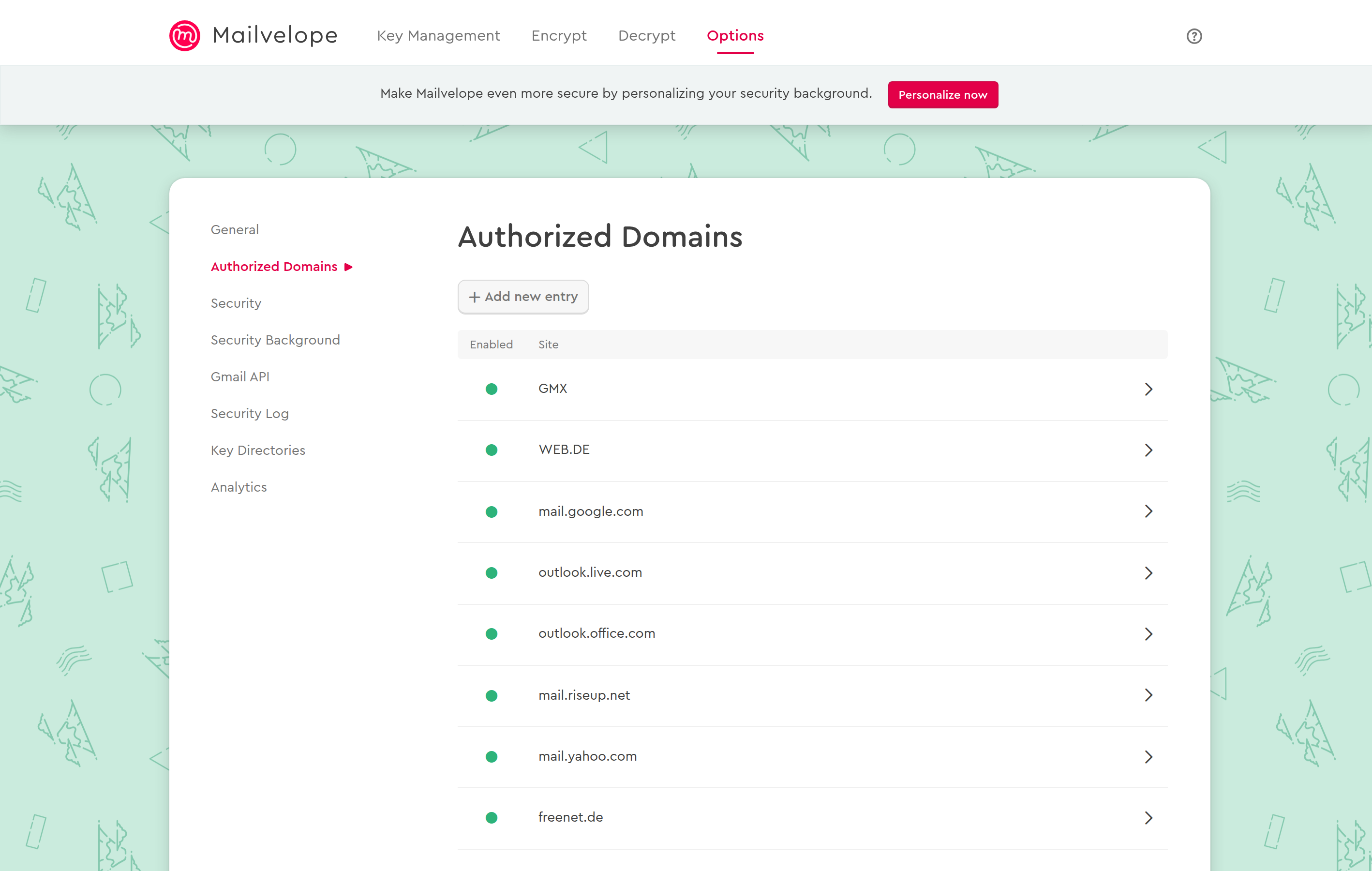
You can see the same list at any time under the Mailvelope dashboard’s Options, then Authorized Domains. The providers it already knows are listed there, and Add new entry is how your own webmail joins them.
Step 2: Create or Import Your Key Pair
Section titled “Step 2: Create or Import Your Key Pair”You need a personal key pair: a public key others use to encrypt mail to you, and a secret key that decrypts it, protected by a passphrase.
Do this in the Mailvelope extension. Click the Mailvelope toolbar icon and open the dashboard, then use Key Management to generate a new key. You will be asked for your name, the email address of the mailbox, and a passphrase. Everything happens inside the extension on your computer: the key is never generated on, or sent to, a mail server.
If you already use OpenPGP elsewhere, import that key instead of making a second one, so people can keep writing to a single address with a single key. Key Management imports an existing .asc key pair exported from Thunderbird or Gpg4win; it is all the same OpenPGP standard.
Some webmail builds also offer to set a key up from Settings, then Identities, under an encryption section on the identity. If yours shows that, it does the same job through the same extension. It is not present on every build, so the extension route above is the one to rely on.
If a key you created does not appear when composing, look for a Use Mailvelope main keyring option in your webmail’s Mailvelope settings and enable it: webmail can otherwise keep a separate keyring per site.
Back up your keys immediately
Section titled “Back up your keys immediately”In the Mailvelope dashboard’s key management, export a backup of your key pair and store it safely offline. The vendor is explicit that the passphrase is unrecoverable and the keys exist only in this browser profile: uninstalling the extension, resetting the browser or losing the machine loses the keys, and with them every message encrypted to you. Moving to a new computer means exporting the keyring on the old one and importing it on the new one, then authorising your webmail domain again.
Step 3: Exchange Public Keys
Section titled “Step 3: Exchange Public Keys”- Share yours. Export your public key (a small
.ascfile, safe to give anyone) from Mailvelope’s key management and send it to the people you correspond with, or upload it to keys.openpgp.org, which verifies your address before listing you so others can find your key by searching your email address. - Get theirs. Import correspondents’ public keys into Mailvelope from files they send you, or let the keyserver search find them by address. You can only encrypt to someone whose public key you hold.
Step 4: Send and Read Encrypted Mail
Section titled “Step 4: Send and Read Encrypted Mail”- Compose a message in webmail as normal, and choose the Encrypt message with Mailvelope option in the compose window.
- The Mailvelope editor opens in place of the normal message body. Write your message there. Add attachments inside the Mailvelope editor too: files added there are encrypted along with the message, while files added with the normal webmail attachment control are discarded when an encrypted message is sent.
- Send. The message leaves as standard PGP/MIME encrypted mail, readable by any OpenPGP-capable client on the other end, whether that is Mailvelope, Thunderbird or Outlook with Gpg4win.
- Incoming encrypted messages appear in a Mailvelope frame in the message view; enter your passphrase to decrypt. Signed messages show their verification status in the same frame.
Limitations Worth Knowing
Section titled “Limitations Worth Knowing”- The subject line is not encrypted, and neither is the fact that you corresponded. Encryption covers the body and attachments.
- Drafts of encrypted messages are encrypted to your own key, so you need your own key working to reopen them.
- Webmail search cannot look inside encrypted messages. The server cannot read them, so it cannot index them; that is the point.
- Both sides need OpenPGP. For someone without a key you can still send ordinary mail; encryption simply is not available for them yet.
- One browser profile at a time. Your keys are wherever you put them. Using webmail from a new device without importing your keys shows you ciphertext, not mail.
Troubleshooting
Section titled “Troubleshooting”- Symptom: webmail shows that the Mailvelope extension is not enabled or installed: the extension is missing in this browser, disabled, or the webmail domain has not been authorised. Reinstall or re-enable the extension, click its toolbar icon on the webmail page, authorise the domain, and reload.
- Symptom: your key exists in Mailvelope but webmail says your identity has no key: the extension keeps a separate keyring for the site. Enable Use Mailvelope main keyring in webmail’s Mailvelope settings so webmail reads the same keyring the extension writes to.
- Symptom: you cannot encrypt to a recipient: you do not hold their public key. Import it or search the keyserver for their address; until then Mailvelope has nothing to encrypt with for them.
- Symptom: an attachment went missing from an encrypted message: it was added with the normal webmail attach control rather than inside the Mailvelope editor. Resend with the file added in the encrypted editor.
- Symptom: new computer or reinstalled browser, and encrypted mail will not open: import your keyring backup into Mailvelope on the new setup, then authorise the webmail domain again. Without that backup the messages are unrecoverable; Noiz cannot decrypt them for you by design.
Webmail with Mailvelope is the quickest route to end-to-end encrypted email on a Noiz mailbox: no mail client to install, and the server never sees anything readable. If the webmail side misbehaves, open a support ticket with the Noiz support team; the team can confirm your webmail and mailbox are healthy right up to the encryption boundary that keeps everyone, Noiz included, out of your messages.
[noiz] | disrupt the signal