

How to Change an FTP Account Password in Plesk
This guide shows you how to change the password on an additional FTP account for a domain hosted on your Noiz Plesk hosting. Rotating an FTP password is the quickest way to lock out old credentials after someone leaves the team, a device is lost or stolen, or you suspect a login has been exposed.
Last reviewed: 23 September 2026, against the current Plesk Obsidian release. This guide is written for Noiz hosting and is kept current against Plesk. It complements, and does not replace, the official Plesk documentation linked below.
Plesk keeps two different kinds of FTP login, and they are changed in different places:
- The main FTP account is the subscription’s own system user. Its password is separate from your Plesk login and is changed under Websites & Domains, your domain, the Hosting & DNS tab, Hosting (the Password field under the system user), not through the FTP screen below. See the FTP section of the Plesk Tutorial. It is not a “root” account and has no server-wide access.
- Additional FTP accounts are the extra logins you create per domain to give a person or an application access to a specific folder. The steps below cover these.
Official Documentation Reference
Section titled “Official Documentation Reference”- Plesk Obsidian Customer Guide: FTP Access to Your Websites
- Plesk Obsidian Customer Guide: Adding FTP Accounts
- Plesk Tutorial (where to find and reset the main FTP account’s username and password)
Prerequisites
Section titled “Prerequisites”- Your Plesk login for the subscription that hosts the domain.
- The name of the FTP account you want to update, if the domain has more than one.
Change an FTP Account Password
Section titled “Change an FTP Account Password”- Log in to your Plesk account.
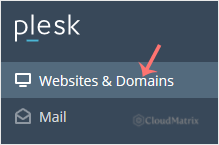
- Click Websites & Domains in the sidebar menu.
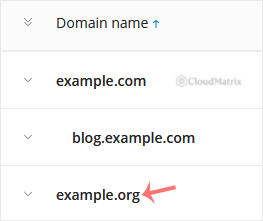
- Click the domain you want to work with to open its card.
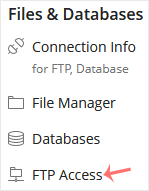
- On the domain’s card, click FTP (labelled FTP Access in some places).
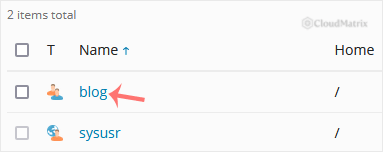
- Click the FTP account you want to change.
- In the Password field, type a new password, or click Generate to have Plesk create a strong one for you. Click Show to reveal the password so you can copy it before you save.
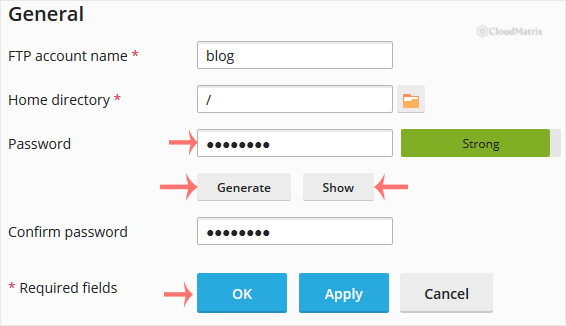
- Confirm with OK.
The change takes effect immediately. There is no need to restart anything, and other FTP accounts on the domain are not affected.
After You Change the Password
Section titled “After You Change the Password”- Update your FTP client. Any saved connection in FileZilla, WinSCP, Cyberduck or a similar client still holds the old password and will fail to connect until you update the stored credential.
- Update anything that logs in automatically. Backup jobs, deployment pipelines and site plugins that upload over FTP will stop working until they are given the new password.
- Prefer a secure connection. Plain FTP sends the password and files unencrypted. Where your client supports it, connect over FTPS (explicit FTP over TLS), which Plesk recommends and most modern FTP clients support.
Troubleshooting
Section titled “Troubleshooting”The new password is rejected: Plesk enforces a minimum password strength. Use a longer password that mixes upper and lower case letters, digits and a symbol, or click Generate to let Plesk produce one that meets the policy.
Connections still fail after saving the new password: the client is almost certainly reusing the old, cached credential. Remove the saved password from the FTP client’s site or bookmark entry and enter the new one by hand.
You cannot see an FTP Access option, or no accounts are listed: confirm you are inside the correct domain and that your hosting plan includes additional FTP accounts. If the domain only shows the main system user, that login is changed under Hosting & DNS, Hosting (the Password field under the system user), not here.
If you are on a Noiz managed plan and would rather Noiz rotate the credential for you, or you have lost access to the Plesk account entirely, contact Noiz support and the team will assist.
[noiz] | disrupt the signal