

How to Install Joomla with Softaculous
This guide shows you how to install Joomla, a popular free content management system (CMS), on your hosting plan using Softaculous. Softaculous is an app installer, sometimes called a one-click or auto installer, that is built into your hosting control panel. It creates the database, copies the Joomla files, and configures the site for you, so no manual uploading or database work is needed. This guide is written for anyone setting up a new Joomla website on a Noiz hosting plan, and no technical experience is required.
Last reviewed: 27 July 2026, against the current Softaculous release and the Joomla release it offers. This guide is written for Noiz hosting and is kept current against Softaculous and Joomla. It complements, and does not replace, the official Softaculous and Joomla documentation linked below.
Official Documentation Reference
Section titled “Official Documentation Reference”- Softaculous end-user docs: Install a Script: the official install procedure
- Softaculous end-user documentation index: upgrades, backups, cloning, and password resets
- Joomla on Softaculous: the Joomla versions Softaculous currently offers
- Joomla official downloads: confirms the current Joomla release
- Joomla Manual: Technical Requirements: PHP and database versions Joomla supports
Prerequisites
Section titled “Prerequisites”- A Noiz hosting plan that includes the Softaculous app installer.
- Login details for your hosting control panel. If your plan uses Plesk, see How to log in to Plesk.
- A domain name that already points to your hosting plan.
- An active SSL certificate on the domain, so the site can be installed over
https://. - PHP
8.3or newer enabled for the domain. Joomla 6 requires PHP 8.3.0 as a minimum, and the Joomla project recommends PHP 8.4.
Step 1: Open Softaculous
Section titled “Step 1: Open Softaculous”- Log in to your hosting control panel.
- Find the Softaculous entry. Its location varies between control panels: a Softaculous entry in the Plesk left-hand menu, Softaculous Apps Installer in the Software section of cPanel, or Softaculous Apps Installer under Extra Features in DirectAdmin. For step-by-step help on your panel, see the guide for Plesk, cPanel, DirectAdmin or ISPConfig.
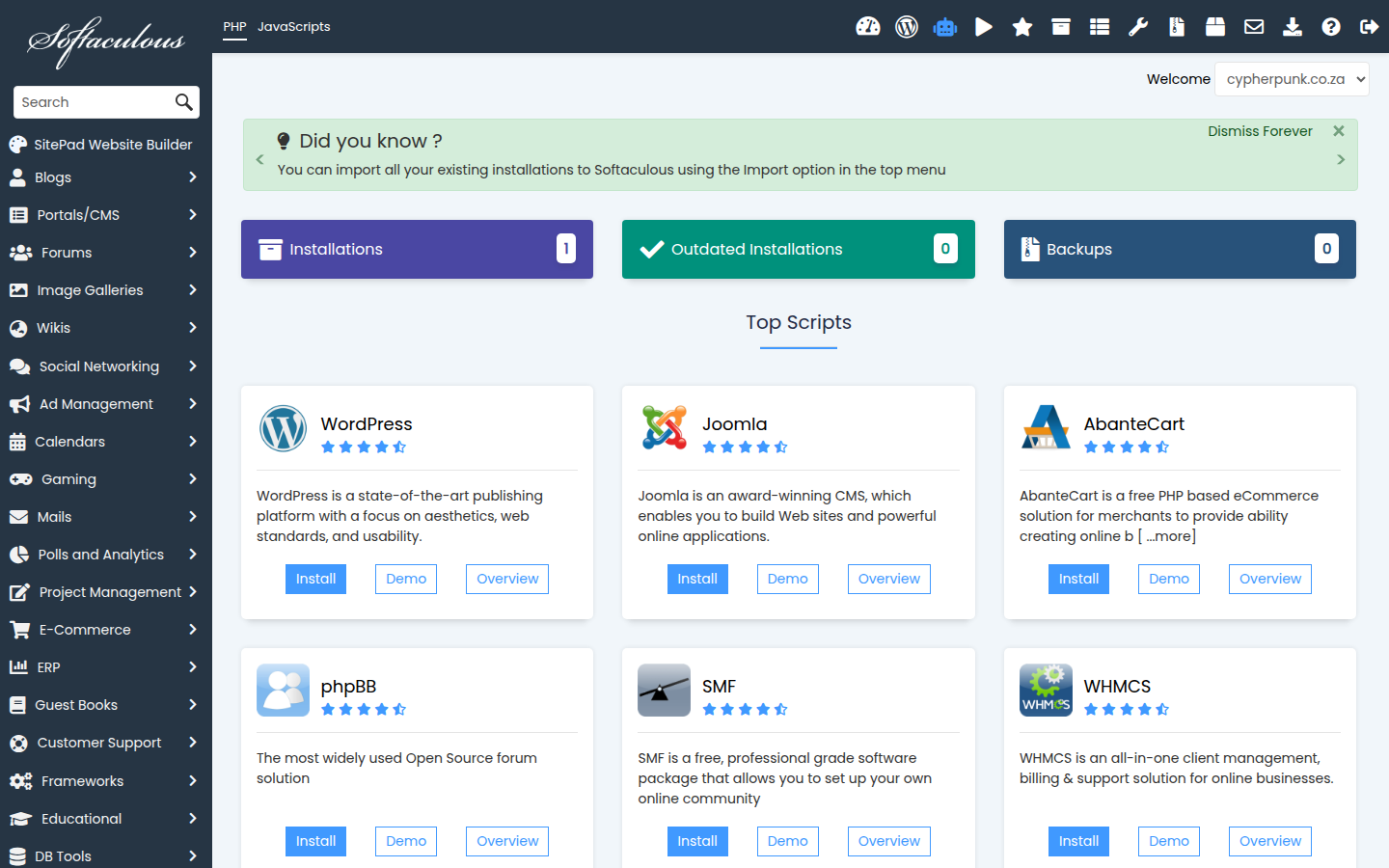
- Click it to open the Softaculous interface. You will see script categories in the left sidebar and the most popular scripts in the centre of the page.
Step 2: Find Joomla and Start the Installer
Section titled “Step 2: Find Joomla and Start the Installer”- In the left sidebar, click the Portals/CMS category, then click Joomla. You can also type
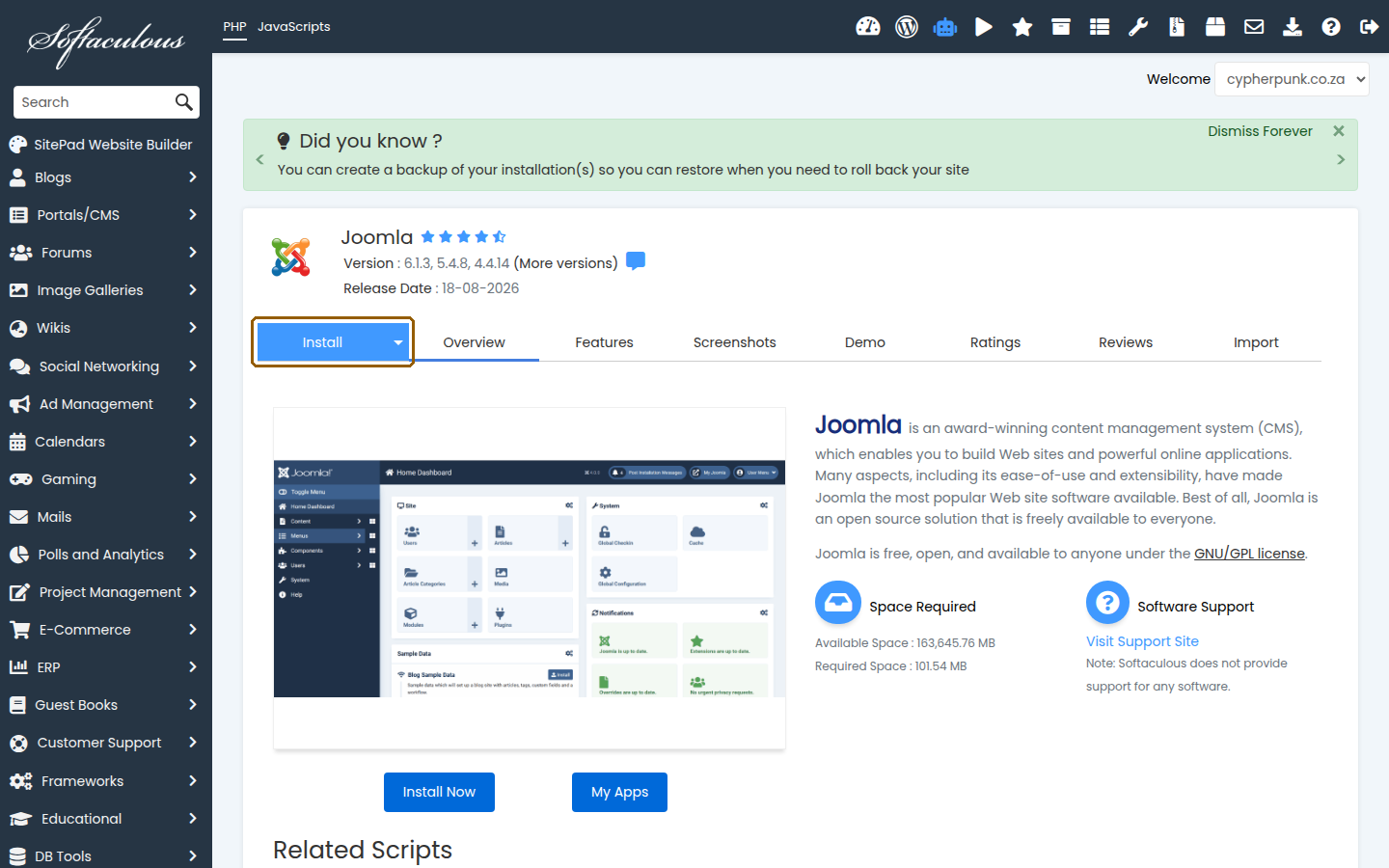
Joomlainto the search box at the top of the sidebar. - The Joomla overview page opens, showing ratings, screenshots, and a demo.
- Click the Install button (or the Install tab) to open the installation form.
Step 3: Check the Settings That Matter
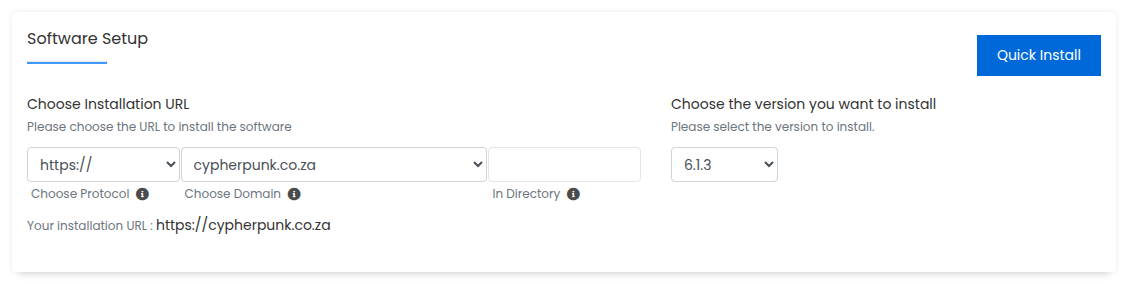
Section titled “Step 3: Check the Settings That Matter”Most fields on the form are pre-filled with safe defaults. The official Install a Script page describes the whole form. Before you click Install, check these:
- Choose Installation URL: choose
https://, which needs an SSL certificate on the domain, and read the selected domain carefully. If your account holds several domains, the one pre-selected is not always the one you meant. - In Directory: leave this blank to install Joomla at the root of the domain, so the site loads at
https://yourdomain.com(replaceyourdomain.comwith your own domain throughout). Only enter a folder name, for examplejoomla, if you want the site athttps://yourdomain.com/joomla. - Admin Username: avoid
adminoradministrator, as automated attacks try those names first. Set a long, strong password (the key icon generates one), use an Admin Email you actually receive mail at, and record the details in a password manager. - Auto Upgrade and Automated backups (under Advanced Options): if you let Softaculous apply Joomla updates automatically, turn on scheduled backups as well, so a bad update can be rolled back. Keep the backup rotation small, because backups count towards your disk space.
Step 4: Run the Installation
Section titled “Step 4: Run the Installation”- Click the Install button at the bottom of the form.
- A progress bar appears. Installation normally takes under a minute, though the time varies. Do not close the browser window until it finishes.
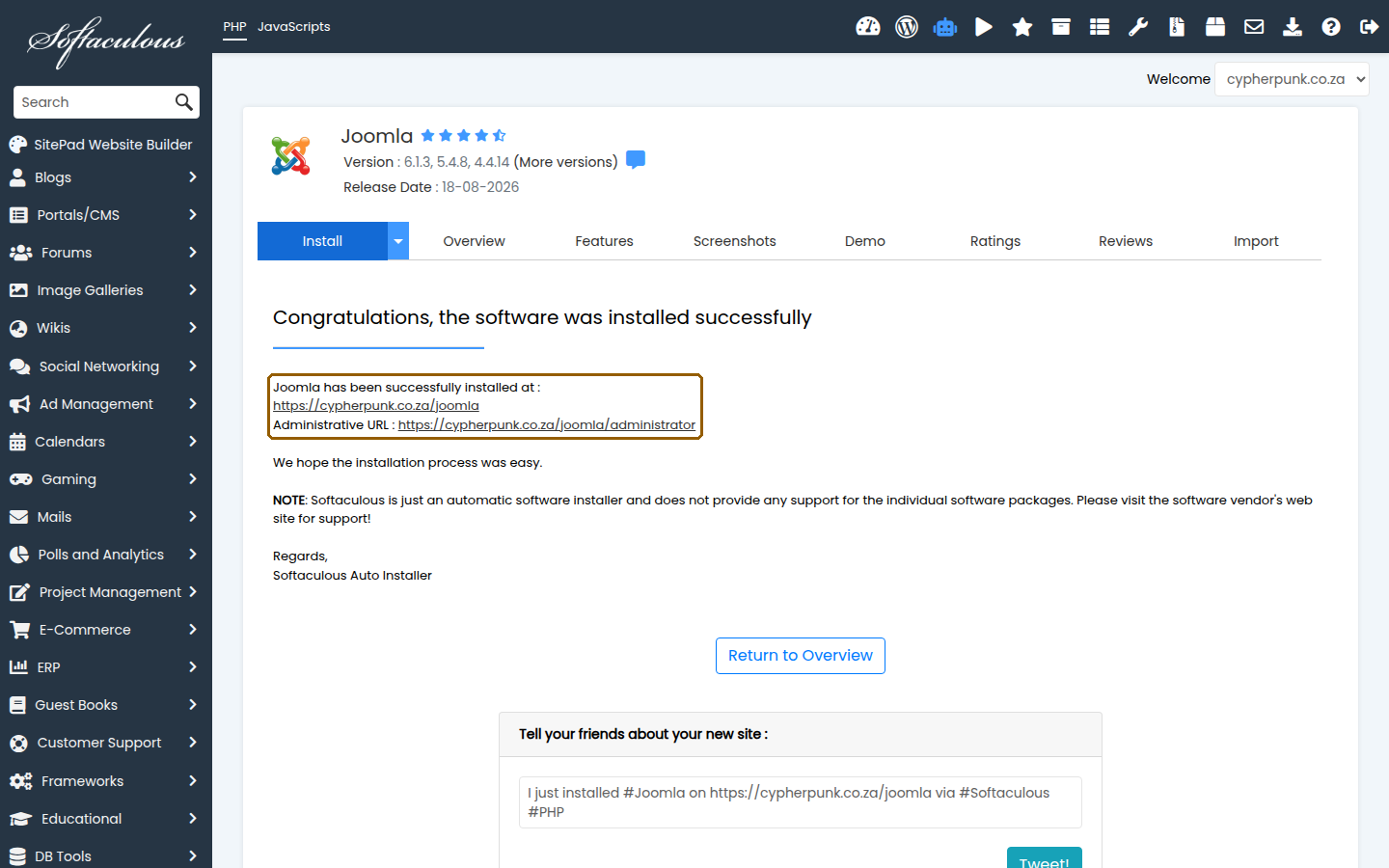
- When the installation completes, Softaculous shows a success message with two links: the address of your new site and the address of its administrator area.
Step 5: Log in to Your New Joomla Site
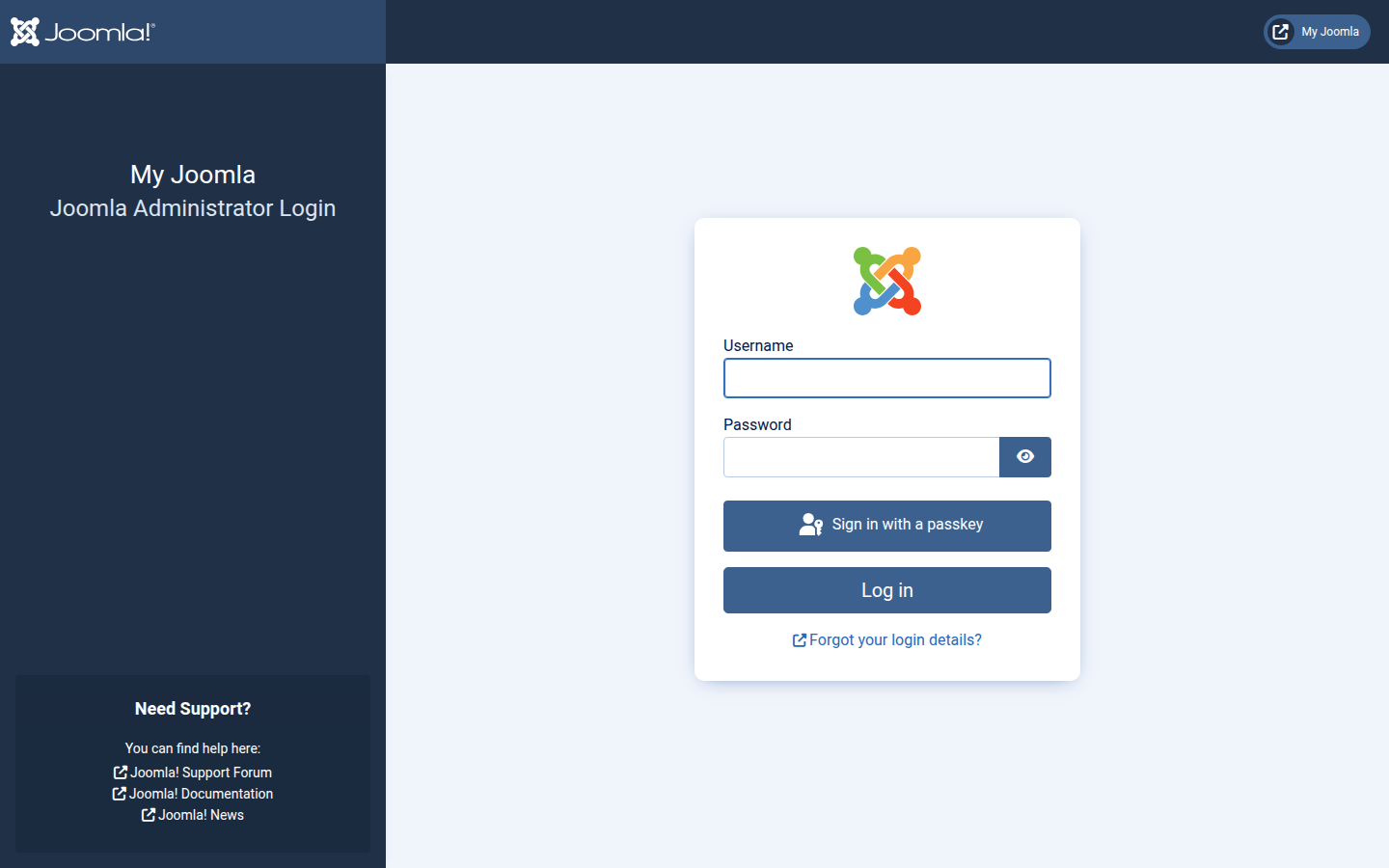
Section titled “Step 5: Log in to Your New Joomla Site”- Open the administrator link from the success screen. For a root installation it looks like
https://yourdomain.com/administrator(using your own domain). - Log in with the Admin Username and Admin Password you set in Step 3.
- You are now in the Joomla administrator dashboard, where you can choose a template, create articles, and build menus. Your public site is live at
https://yourdomain.com.
Troubleshooting
Section titled “Troubleshooting”- The installer reports that files already exist in the target directory: another site or an earlier installation attempt is occupying that location. Either choose a different In Directory value, or back up and remove the existing files first, then run the installer again.
- The installation fails with a database error: your plan may have reached its database limit, or a database with the generated name already exists. Remove an unused database, or expand Advanced Options and set a different Database Name.
- Joomla reports an unsupported PHP version: Joomla 6 needs PHP 8.3.0 or newer. Raise the PHP version for the domain in your hosting control panel, or select a supported older Joomla branch from the version dropdown before installing.
- The site loads over http instead of https: confirm the domain has a valid SSL certificate, then use Edit Installation (the pencil icon next to the installation in Softaculous) to change the installation URL to
https://. - You have lost the admin password: in Softaculous, open All Installations, find the Joomla installation, and use the admin password reset option to set a new one.
Softaculous is included on Noiz hosting plans that ship with the app installer, and everything above happens inside your own control panel. If you get stuck at any step, open a support ticket with the Noiz support team, including your domain name and the point where the installation failed, and they will help you get your Joomla site running.
[noiz] | disrupt the signal