

How to Install Drupal with Softaculous
This guide shows you how to install Drupal on your hosting account using Softaculous, the one-click application installer (sometimes called an apps installer or auto-installer) included in your hosting control panel. Softaculous creates the database, copies the Drupal files and completes the initial setup for you, so there is nothing to upload or configure by hand. It is written for anyone setting up a new Drupal site on a Noiz hosting plan, and no Drupal experience is needed. By the end you will have a working Drupal site and know where to log in to its administration area.
Last reviewed: 27 July 2026, against the current Softaculous release, installing the current Drupal core release. This guide is written for Noiz hosting and is kept current against Softaculous and Drupal. It complements, and does not replace, the official Softaculous and Drupal documentation linked below.
Official Documentation Reference
Section titled “Official Documentation Reference”- Softaculous: Install a Script
- Softaculous: Quick Install a Script
- Drupal core releases (current stable version)
- Drupal: PHP requirements
- Drupal CMS project page
Prerequisites
Section titled “Prerequisites”- A Noiz hosting plan that includes the Softaculous apps installer.
- A domain or subdomain that already points to your hosting account.
- Your control panel login details. If your plan uses Plesk, see How to log in to Plesk.
- PHP
8.3or newer enabled for the domain. Drupal 11 does not install on older PHP versions.
Step 1: Open Softaculous
Section titled “Step 1: Open Softaculous”- Log in to your hosting control panel.
- Find and open Softaculous. Its location varies between control panels: a Softaculous entry in the Plesk left-hand menu, Softaculous Apps Installer in the Software section of cPanel, or Softaculous Apps Installer under Extra Features in DirectAdmin. For step-by-step help on your panel, see the guide for Plesk, cPanel, DirectAdmin or ISPConfig.

Step 2: Choose the Right Drupal Package
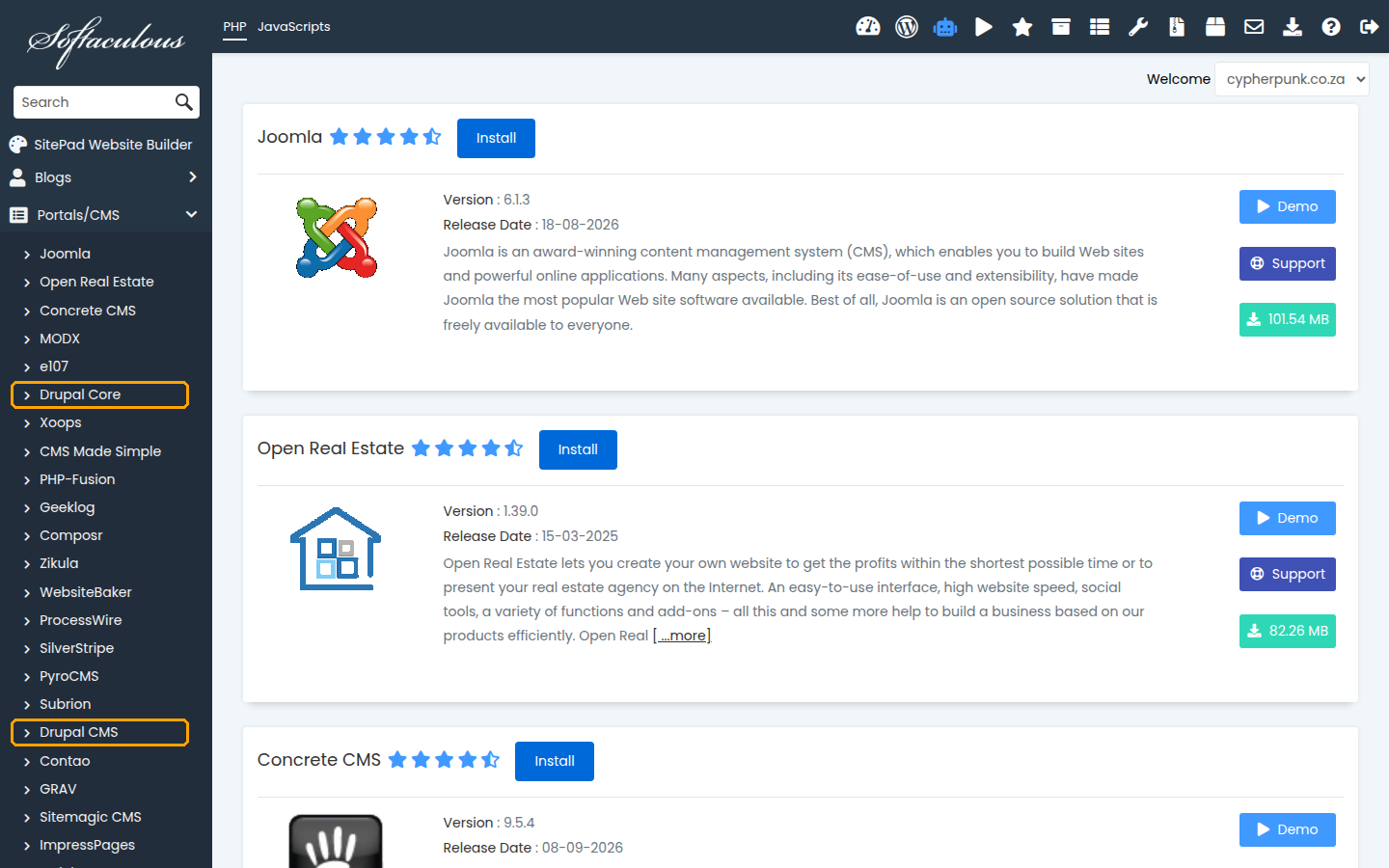
Section titled “Step 2: Choose the Right Drupal Package”In the Softaculous category list on the left, open Portals/CMS, or type Drupal into the search box at the top. Softaculous currently lists two Drupal packages:
- Drupal Core (sometimes listed simply as Drupal): the standard Drupal installation. This guide follows this option.
- Drupal CMS: a ready-to-use bundle built on Drupal 11 core, pre-configured with media management, SEO and other features aimed at marketing teams and site builders. Once installed it is still ordinary Drupal underneath, and the Softaculous form is essentially the same, so you can follow this guide for either package.
Click the package you want to install.
Step 3: Start the Installation
Section titled “Step 3: Start the Installation”- On the Drupal overview page, click the Install tab (or the Install Now button).
- If a small arrow next to Install offers a choice between Quick Install and Custom Install, choose Custom Install. Quick Install fills most settings with defaults, while Custom Install shows every field on the form.
Step 4: Check the Settings That Matter
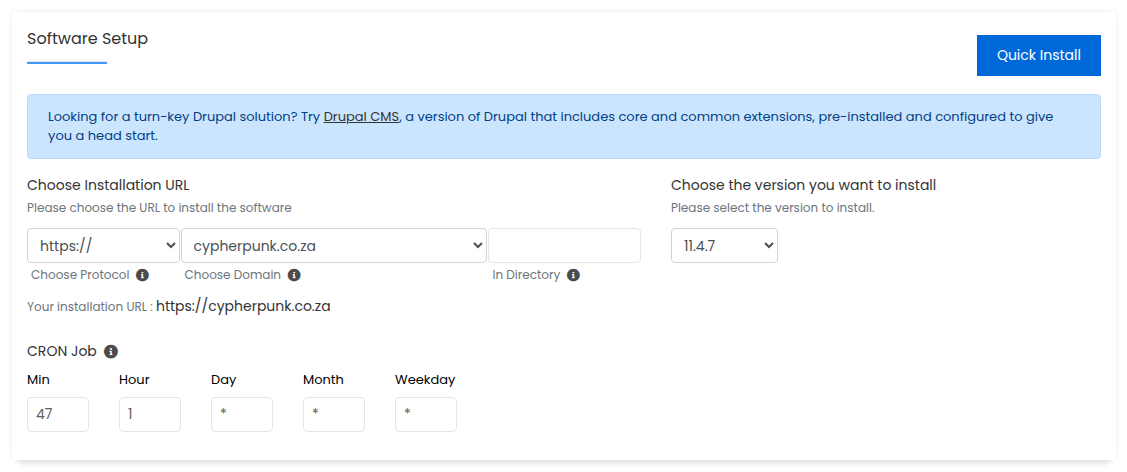
Section titled “Step 4: Check the Settings That Matter”Most fields on the form are pre-filled with safe defaults. The official Install a Script page describes the whole form. Before you click Install, check these:
- Choose the version you want to install: leave the newest version selected unless you have a specific reason to install an older supported branch.
- Choose Installation URL: set the protocol to
https://(Noiz hosting plans include an SSL certificate) and read the selected domain carefully. If your account holds several domains, the one pre-selected is not always the one you meant. - In Directory: leave this blank to install Drupal on the root of the domain, for example
https://yourdomain.com(replaceyourdomain.comwith your own domain throughout this guide). Only enter a folder name if you want the site at an address such ashttps://yourdomain.com/drupal. - Cron Job: leave the default. Drupal relies on scheduled cron runs for maintenance tasks, and Softaculous sets this up for you.
- Admin Username: do not use
adminoradministrator. Set a strong, unique password (the key icon generates one), use an Admin Email you actually receive mail at, and record the details in a password manager. - Automated backups (under Advanced Options): scheduled backups give you a way back if an update or change goes wrong. Keep the rotation modest, because backups count towards your hosting plan’s disk space.
Step 5: Run the Installer and Log In
Section titled “Step 5: Run the Installer and Log In”- Scroll to the bottom of the form and click Install.
- Wait while Softaculous copies the files and creates the database. This usually takes under a minute; do not close the browser tab while the progress bar is running.
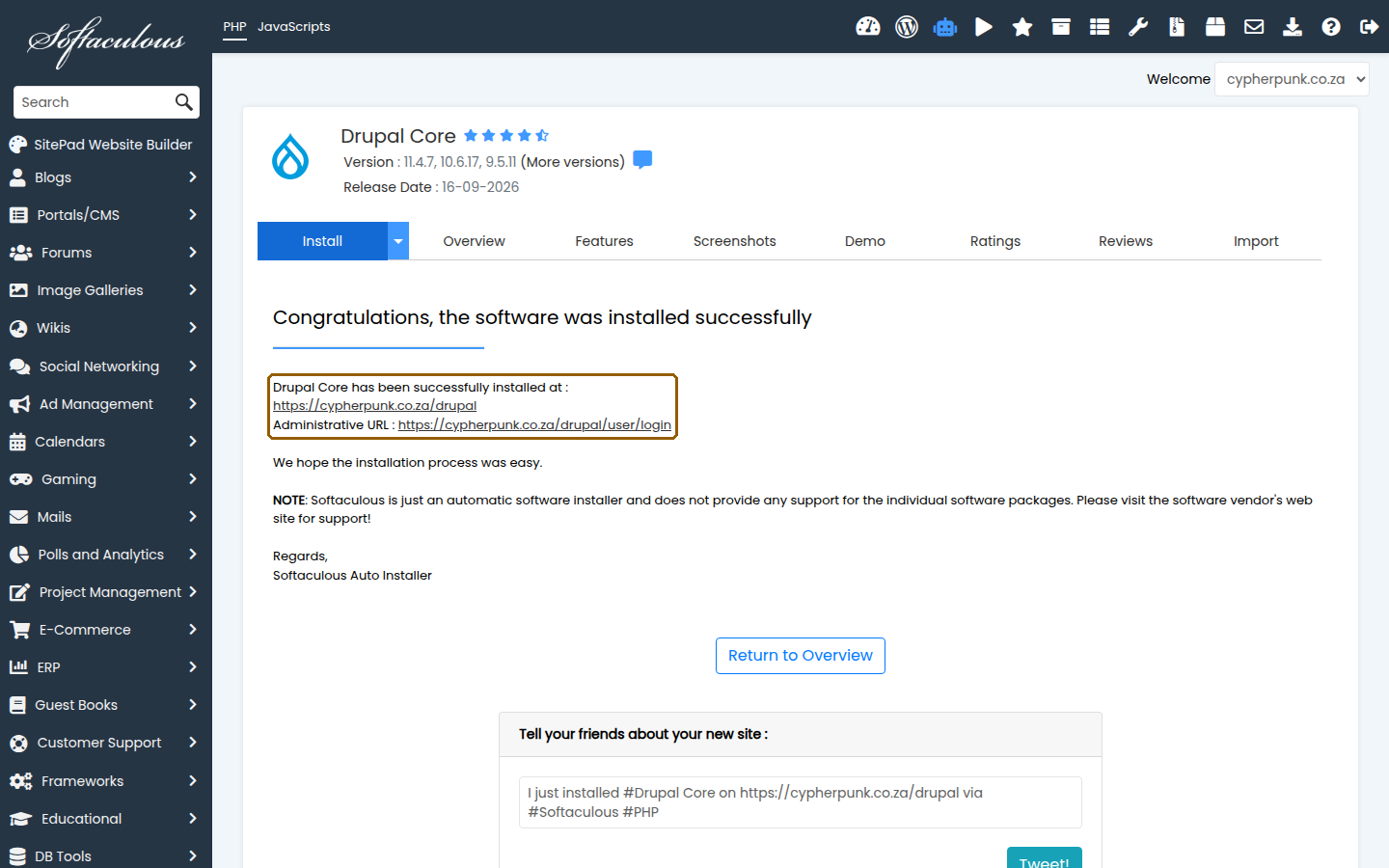
- When the installation completes, Softaculous shows two links: one to your new website and one to its administration area.
- You can reach the Drupal login page at any time at
https://yourdomain.com/user/login(again, replaceyourdomain.comwith your own domain). Log in with the admin username and password you set in Step 4.
Troubleshooting
Section titled “Troubleshooting”You cannot find Softaculous in your control panel: not every hosting plan includes the installer. Open a support ticket with the Noiz support team to confirm whether your plan includes Softaculous.
The installer reports that files already exist in the target directory: Softaculous refuses to overwrite an existing site. Either install into a different directory, or remove the old files first, but only after taking a backup of anything you still need.
The installer reports an unsupported PHP version: Drupal 11 requires PHP 8.3 or newer. Change the PHP version for the domain in your control panel, or ask the Noiz support team to do it, then run the installation again.
You cannot find the Drupal login page: unlike some other content management systems, Drupal does not link to its login page from the site itself by default. Go directly to https://yourdomain.com/user/login.
If you get stuck at any point, open a support ticket with the Noiz support team and include your domain name and the step where the installation failed. The team can confirm Softaculous availability, adjust PHP versions and check the installation logs for you.
[noiz] | disrupt the signal