

How to Fix the "Missing a Temporary Folder" Error in WordPress
This guide shows you how to fix the WordPress upload error that reads “Missing a temporary folder.” You usually meet it at the worst moment: you try to add an image to the Media Library, upload a plugin or theme, or import content, and instead of the file appearing you get that short, unhelpful message. The same fault is sometimes described as “WordPress missing a temporary folder” or “temporary folder is missing”, and they all point at the same thing. This article explains what the error actually means, why it turns up on otherwise healthy sites, why the usual wp-config.php fix does not clear it, and the fix that does: giving PHP a writable temporary directory in your site’s PHP settings, or asking Noiz support to do it for you. It is written for Noiz clients who run their own WordPress site.
The reassuring part is that this is not a sign of a hacked, corrupt, or broken WordPress. It is almost always a small server-side configuration detail, and once you understand where PHP looks for its scratch space the fix is quick. The official documentation lists the error code; what it does not spell out is that the popular one-line fix, a WP_TEMP_DIR line in wp-config.php, cannot clear this error, and that gap is exactly what this guide fills.
Last reviewed: 27 July 2026, against the current WordPress release. This guide is written for Noiz hosting and is kept current against WordPress. It complements, and does not replace, the official WordPress and PHP documentation linked below.
Official Documentation Reference
Section titled “Official Documentation Reference”- get_temp_dir() (WordPress Developer Resources): the core function that decides which temporary directory WordPress uses for its own files, starting with
WP_TEMP_DIRand falling back towp-content. - download_url() (WordPress Developer Resources): how WordPress downloads plugin, theme and core update packages to a temporary file, which is what
WP_TEMP_DIRaffects. - Editing wp-config.php (Advanced Administration Handbook): how
wp-config.phpis laid out and where your own settings belong. - File upload errors (PHP Manual): the definitive list of PHP upload error codes, including
UPLOAD_ERR_NO_TMP_DIR, the code behind this message, andUPLOAD_ERR_CANT_WRITE, the code behind “Failed to write file to disk.” - The upload_tmp_dir directive (PHP Manual): what this PHP setting controls, how PHP falls back to the system temporary directory when it is missing or unwritable, and why a path restriction must allow that fallback.
- The open_basedir directive (PHP Manual): the path restriction that can stop PHP reaching the system temporary directory.
- List of php.ini directives (PHP Manual): shows
upload_tmp_diras anINI_SYSTEMsetting. - Where a configuration setting may be set (PHP Manual): an
INI_SYSTEMsetting can only be set inphp.inior the web server configuration, not in.htaccess,.user.inior a script. - Common WordPress errors (Advanced Administration Handbook): the official catalogue of WordPress error messages for wider context.
Prerequisites
Section titled “Prerequisites”- A way to reach your site’s files: an SFTP client, or the File Manager in your Noiz hosting panel. The fix points PHP at a folder in your hosting account, which you may need to create first.
- The ability to log in to your WordPress admin dashboard as an administrator, so you can reproduce the error and confirm the fix by uploading a test file afterwards.
- Access to your site’s PHP settings in the hosting panel, or, on a managed plan, the option to ask the Noiz support team to change them for you. The fix needs this.
- A note of any PHP setting you change, including its old value, so you can put it back if needed.
What the Error Actually Means
Section titled “What the Error Actually Means”Understanding the message makes every fix below obvious. When you upload a file to WordPress, the file does not go straight to its final home in wp-content/uploads. First PHP, the language WordPress is built on, receives the incoming file and writes it to a short-lived scratch location called a temporary directory, before any WordPress code runs. Only once the whole file has arrived safely does WordPress move it into place. That temporary directory is the “temporary folder” in the error.
If PHP has nowhere it is allowed to write that scratch file, it abandons the upload and flags it with a specific code, UPLOAD_ERR_NO_TMP_DIR, known to PHP as error number 6. WordPress reads that code and prints the matching sentence from its own list of upload messages, which for code 6 is exactly “Missing a temporary folder.” So the message is not WordPress complaining about itself; it is WordPress faithfully reporting that PHP could not find a usable scratch folder underneath it.
That distinction matters, because it tells you where the fix lives: in your site’s PHP configuration, not in WordPress. It is not something you repair by reinstalling WordPress, deleting plugins, or adding a line to wp-config.php.
Do Not Confuse It With Its Neighbours
Section titled “Do Not Confuse It With Its Neighbours”WordPress has a short family of upload errors that look similar but have different causes. Reading the exact wording saves you chasing the wrong fix:
- “Missing a temporary folder.” is the one this guide covers: PHP could not create its scratch file anywhere.
- “The uploaded file exceeds the upload_max_filesize directive…” means the file is simply too large for the current PHP limit, an entirely separate setting.
- “Failed to write file to disk.” means PHP created its scratch file but could not write the upload into it, almost always because the disk or your hosting quota is full.
- “The uploaded file could not be moved to wp-content/uploads/…” means PHP received the file safely but WordPress cannot write to the destination folder, usually a permissions problem on
wp-content/uploads.
If your message is one of the last three, this guide is not the right one. Only the first wording points at the missing temporary folder.

Why It Happens on a Healthy Site
Section titled “Why It Happens on a Healthy Site”Here is the detail most quick guides skip. PHP is forgiving about this. If no temporary directory is set for uploads, or the one that is set is missing or cannot be written to, PHP quietly falls back to the server’s own system temporary directory. Because of that fallback, a correctly configured site almost never sees this error: it only appears when the fallback fails as well. That happens in a small number of situations:
- PHP’s temporary directories are missing or cannot be written to. The folder named in PHP’s
upload_tmp_dirsetting, if there is one, and the system temporary directory PHP falls back to either do not exist or cannot be written to by the account PHP runs as. A leftoverupload_tmp_dirfrom a site move, pointing at a folder that only existed on the old server, does not cause the error on its own, because PHP simply falls back. It only matters when the fallback is broken too. - A path restriction excludes the system temporary directory. Some hardened setups use a PHP setting called
open_basedirto confine PHP to a set of allowed folders. Ifupload_tmp_dirdoes not point at a working folder and the system temporary directory sits outside the allowed set, PHP is not allowed to fall back to it and reports the missing folder instead. - A disk that cannot take another file. When the disk or quota holding the temporary directory has reached its limit on the number of files, PHP cannot create its scratch file and reports this error. A disk that has simply run out of space usually lets PHP create the file but not fill it, which gives “Failed to write file to disk.” instead.
Whichever applies, the cure is the same: give PHP a temporary directory it can create files in (Fix 1), and make sure the disk has room (Fix 2). The troubleshooting section at the end helps if the first attempt does not stick.
Why the Usual wp-config.php Fix Does Not Work
Section titled “Why the Usual wp-config.php Fix Does Not Work”Many guides suggest creating a wp-content/temp folder and adding this line to wp-config.php, just above the line that begins /* That's all, stop editing!:
define( 'WP_TEMP_DIR', dirname( __FILE__ ) . '/wp-content/temp/' );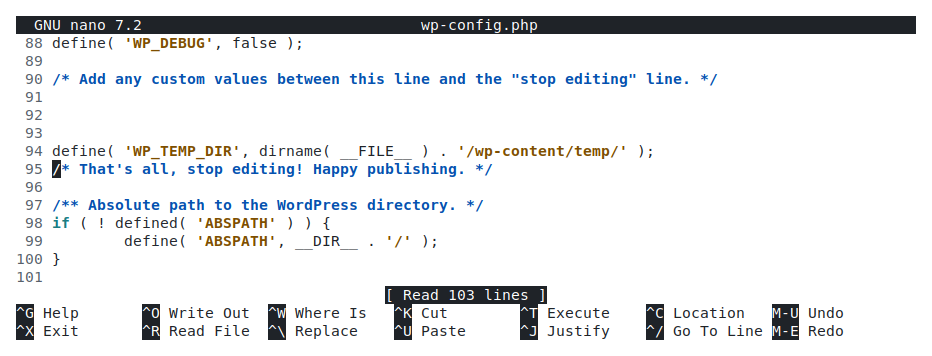
That line does not clear “Missing a temporary folder.” WP_TEMP_DIR only changes where WordPress itself writes temporary files, such as the packages it downloads when you install or update plugins, themes and WordPress itself. PHP receives and stages an upload before any WordPress code runs, so with the constant in place the same upload fails with the same message.
Most sites do not need the constant at all, because WordPress already falls back to wp-content for its own temporary files when the server’s temporary directories are not writable. If you have already added it, be aware that WordPress uses the named folder without checking it: keep wp-content/temp in place and writable, or remove the line and the folder together.
Fix 1: Give PHP a Writable Temporary Directory
Section titled “Fix 1: Give PHP a Writable Temporary Directory”This is the fix, because it changes the setting PHP itself reads. Point PHP’s upload_tmp_dir setting at a folder that exists, that your site’s PHP can write to, and that any path restriction allows. A folder inside your hosting account but outside the public website folder is the best choice, because nothing in it can be reached from a browser. Create the folder first with File Manager or SFTP, then set this directive in your site’s PHP settings:
upload_tmp_dir = "/full/path/to/your/tmp"Replace the path with the real absolute path to the folder; your File Manager shows this path when you open the folder. If an upload_tmp_dir line is already there and points at a folder that no longer exists, correct that line rather than adding a second one. Deleting it is not enough on its own: PHP then falls back to the system temporary directory, which is the part that is failing.
upload_tmp_dir is a server-level setting. PHP only accepts it from the site’s main PHP configuration, which is what your hosting panel’s PHP settings write to. PHP ignores it in .htaccess, in a .user.ini file and in ini_set() calls, including any in wp-config.php, so setting it there leaves the error in place. The exact place in the panel depends on which panel your site is on.
On Plesk
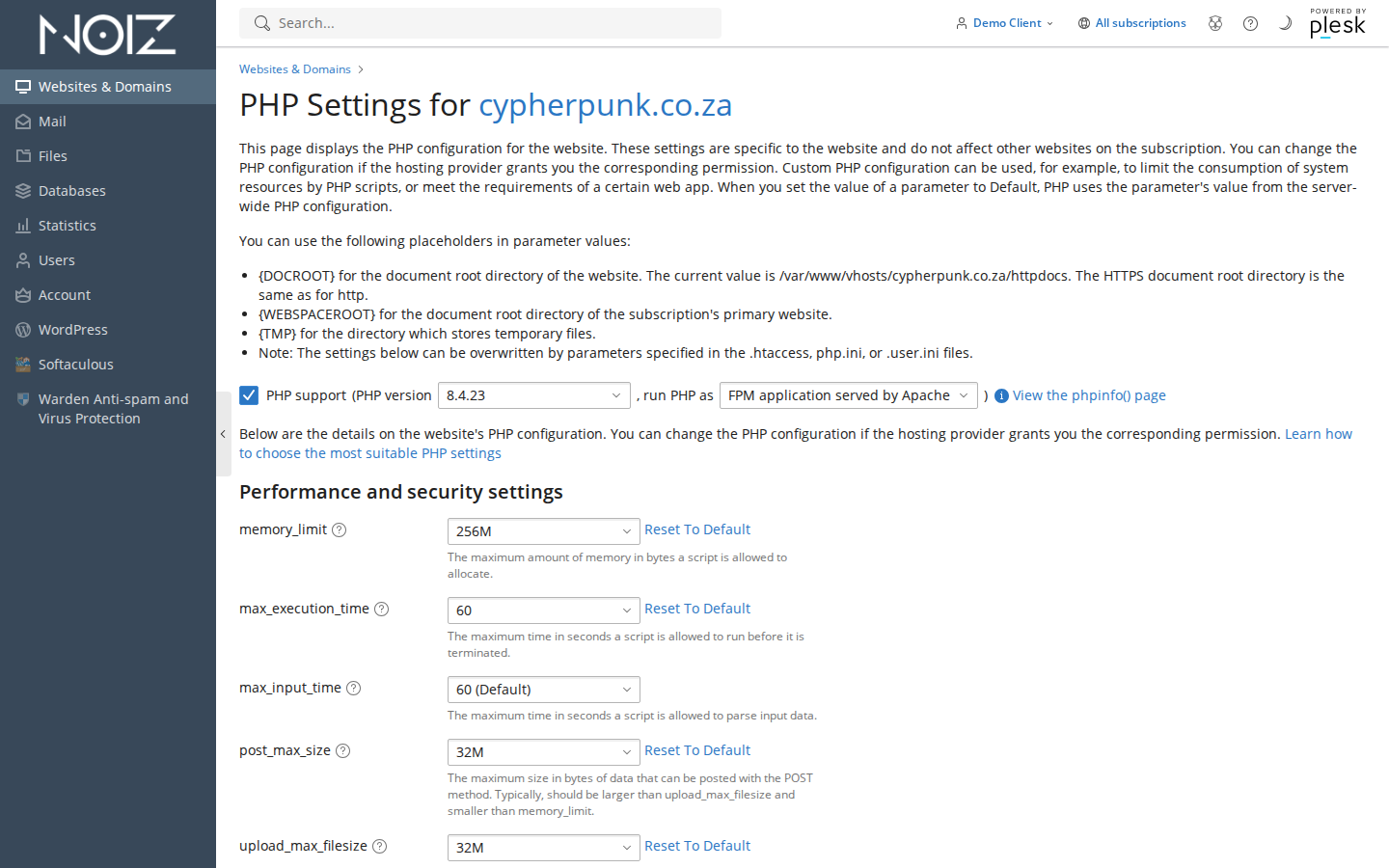
Section titled “On Plesk”For sites on the South African platform, open Websites & Domains, select your domain, and click PHP Settings. Scroll to the Additional configuration directives box at the bottom of the page. This box accepts raw PHP directives, so add your upload_tmp_dir line there, then click OK or Apply. If a stale upload_tmp_dir line is already in the box, correct it rather than adding a second one. Noiz support can confirm the correct path to use if you are unsure.
On ISPConfig
Section titled “On ISPConfig”For sites on the ISPConfig platform, open the site under Sites, then switch to the Options tab. In the Custom php.ini settings box, add your upload_tmp_dir line, then save the site so the change is written out and the PHP handler reloads. As with Plesk, if a leftover value in that box points at a folder that no longer exists, correct that line rather than adding another.
On DirectAdmin
Section titled “On DirectAdmin”For sites on the Ireland platform, the equivalent lives in the domain’s PHP configuration, where DirectAdmin lets you supply custom PHP directives for the selected PHP version. Add or correct the upload_tmp_dir value there and save so the setting is applied. If the exact location is not obvious in your account, the Noiz support team can point you to it or make the change for you.
The Managed-Plan Shortcut
Section titled “The Managed-Plan Shortcut”If your site is on a managed Noiz plan, you do not have to work through the panel at all. Open a ticket, quote the exact error, and ask the Noiz support team to point PHP’s temporary directory at a writable folder for your site. Support can also see at a glance whether a path restriction or a full disk is the underlying cause, which is harder to spot from inside your own account.
Fix 2: Rule Out Permissions and Disk Space
Section titled “Fix 2: Rule Out Permissions and Disk Space”If the fix above is in place and the error persists, two server-level conditions are worth eliminating, and they are the usual reason a correctly configured folder still fails:
- Permissions. The temporary folder must be writable by the user your site’s PHP runs as. If you created the folder yourself over SFTP this is normally fine; if it was created by a different process it may not be. Confirm the folder is set to
755and owned by your hosting account. - Disk space and quota. A disk or quota that cannot take another file stops PHP creating its scratch file, which produces exactly this error even though the folder plainly exists. When there is room to create the file but not to fill it, you see “Failed to write file to disk.” instead. Check your disk usage in the hosting panel. If your account is at or near its limit, clearing space, or asking Noiz support to review your quota, resolves it.
These two also explain an error that appears suddenly on a site that worked yesterday with no configuration change: the disk quietly filled up, or a routine tidied a folder and reset its permissions.
Verify the Fix
Section titled “Verify the Fix”Do not assume the change worked; prove it. Once you have applied a fix, go back into your WordPress dashboard and repeat the exact action that failed. If it was a Media Library upload, upload a small test image. If it was a plugin install or a content import, run that again. A clean upload, with the file appearing where it should, is your confirmation.
There is nothing to undo afterwards: unlike temporary debugging settings, the upload_tmp_dir value is meant to stay in place. If you added a WP_TEMP_DIR line along the way, the note above explains whether to keep it.
Troubleshooting
Section titled “Troubleshooting”- Symptom: you added the
WP_TEMP_DIRline from another guide and the error is unchanged. That is expected. The constant only affects WordPress’s own temporary files, and PHP handles the upload before WordPress loads. Apply Fix 1 so PHP itself has a writable temporary directory. - Symptom: the error started immediately after moving the site to a new host. In your panel’s PHP settings, look for an
upload_tmp_diroropen_basedirvalue carried over from the old server. A staleupload_tmp_dirdoes not cause the error on its own, but together with a path restriction or an unusable system temporary directory it does. Pointupload_tmp_dirat a writable folder on the new server, as in Fix 1. - Symptom: you set
upload_tmp_dirin a.user.inifile, in.htaccessor withini_set(), and nothing changed. PHP accepts this setting only from the site’s main PHP configuration and ignores it everywhere else. Set it in your panel’s PHP settings, or ask Noiz support to. - Symptom: uploads fail with a different message, such as one mentioning
upload_max_filesize, “Failed to write file to disk.” or “could not be moved to wp-content/uploads”. That is a different error with a different cause: a file-size limit, a full disk or quota, or permissions on the uploads folder. Match the exact wording to the right fix. - Symptom: everything looks correct but the error keeps returning. The temporary partition may be full or your account may be over quota, so a folder that exists still cannot accept a file. Check disk usage, or ask Noiz support to review it for you.
When to Contact Noiz Support
Section titled “When to Contact Noiz Support”Most people clear this error with Fix 1 in a few minutes. Some causes, though, sit at a level you cannot see from inside your own account: a path restriction on the PHP handler, a disk that has filled up, or a leftover configuration set during a migration. On managed Noiz hosting, support can inspect the PHP configuration directly, point the temporary directory at a writable folder for you, check your disk and quota, and confirm the folder is writable by the right account.
If you get stuck, open a support ticket with the Noiz support team and include your domain, the exact error text (a screenshot is ideal), which action triggers it (a Media Library upload, a plugin install, or an import), and whether anything changed recently such as a site move or a spike in disk usage. That last detail usually points straight at the cause.
[noiz] | disrupt the signal