

The Recommended Web Server Configuration on Noiz Hosting
There are two web servers in front of your website, and a page of settings that decides which one does what. This guide explains that page in plain language, gives you the configuration Noiz recommends, and shows you the one setting that can make a site slower while the server statistics look better.
It is for anyone on a Noiz shared or managed plan who has been told to “check their web server settings”, or who has opened Apache & nginx Settings and wondered what any of it means. You do not need to be a system administrator to follow it.
Last reviewed: 4 August 2026, against the current Plesk Obsidian release. Every setting name in this guide was read from a live Plesk panel while writing it. This guide is written for Noiz hosting and is kept current against Plesk. It complements, and does not replace, the official Plesk documentation linked below.
Official Documentation Reference
Section titled “Official Documentation Reference”- Apache and nginx Settings (Plesk customer guide): the vendor reference for every field on this page.
- Enabling nginx Caching (Plesk administrator guide): which site profiles nginx caching helps, and the server-wide caching defaults.
- nginx
expiresdirective: what an expiry actually sends to a browser. - When (not) to use .htaccess files (Apache): Apache’s own account of what
.htaccesscosts.
Prerequisites
Section titled “Prerequisites”- A Noiz hosting plan whose control panel is Plesk, and your login for it.
- Permission to change hosting settings on the subscription. Most Noiz plans grant this; if the page is read-only, open a ticket and the change can be made for you.
Two web servers, and which one answers
Section titled “Two web servers, and which one answers”Almost every site on the Noiz shared platform is served by two programs working together.
nginx sits at the front. Every request from every visitor arrives at nginx first. It terminates the encryption, and then it makes one decision: answer this myself, or hand it to Apache.
Apache sits behind it. When nginx hands a request over, Apache does the things Apache is good at: reading the .htaccess file in your site’s folders, applying rewrite rules and access controls, and calling PHP.
PHP-FPM is a third program, and it runs your PHP code. It is always there and it is not something you switch on. The only question is which of the two web servers calls it.
That is the whole model. Every setting on the Apache & nginx Settings page is controlling which requests get handed over to Apache and which nginx answers by itself.
The reason this matters is that a stylesheet, a font or a photograph does not need a PHP-capable web server to hand it over. Making Apache do it holds an Apache worker for the whole of that transfer, and that worker is one a real page request could have used.
The recommended configuration
Section titled “The recommended configuration”Go to Websites & Domains, open the domain, and find Apache & nginx Settings.
| Setting | Recommended | What it does |
|---|---|---|
| Proxy mode | on | Keeps Apache in the request path, so .htaccess keeps working |
| Serve static files directly by nginx | on | nginx answers requests for images, styles and fonts without troubling Apache |
| Specify file extensions | assets only, see below | Which file types nginx answers for |
| Expires | Enter custom value, 30 days |
Tells browsers how long they may keep those files |
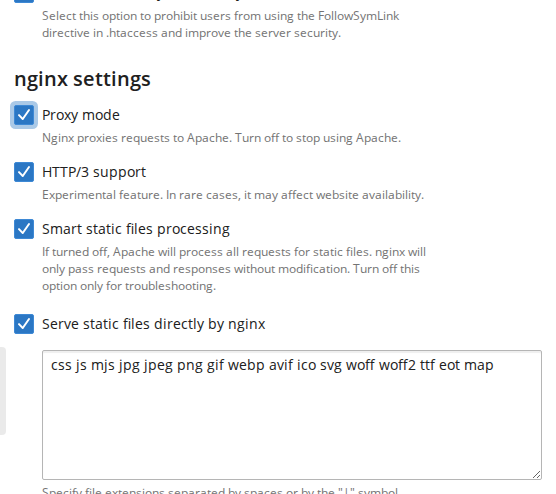
Click OK or Apply to save. The change takes effect immediately, and reverting it is the same page and the same click.
Proxy mode is the one row above that can also be turned off. Clearing it takes Apache out of this site’s request path entirely, so nginx serves everything and hands PHP straight to PHP-FPM. Apache stays installed and keeps running the panel’s own services, and other sites on the server are unaffected. That is a real performance tier, and its cost is .htaccess: nginx does not read it, so every rule in it stops applying. It is a separate decision with its own trade-offs, covered in Running WordPress on nginx without Apache.
There is no “serve PHP by nginx” checkbox on this page. Which web server runs your PHP is chosen on the separate PHP Settings page, as the PHP handler. The recommendation there is Dedicated FPM application served by Apache, which is what keeps .htaccess working. See PHP handlers on Noiz hosting, and which to choose for why, and for the other options.
Why serving static files from nginx matters
Section titled “Why serving static files from nginx matters”This is the setting that does the work, and the effect is not subtle.
Measured on a live site on the Noiz platform with static serving switched off, on 3 August 2026, a day on which the site was also being crawled hard by an automated farm, which is how the misconfiguration came to light: 36,328 requests for CSS files reached Apache in a single day, and 94% of everything Apache handled for that site was static files. Not pages. Stylesheets, scripts, fonts and images.
Switching Serve static files directly by nginx on took Apache from roughly 200 requests a minute to about 5 for that site. The pages were unchanged. The only difference was that the assets stopped being passed backwards.
Plesk’s own warning on that field states the mechanism plainly:
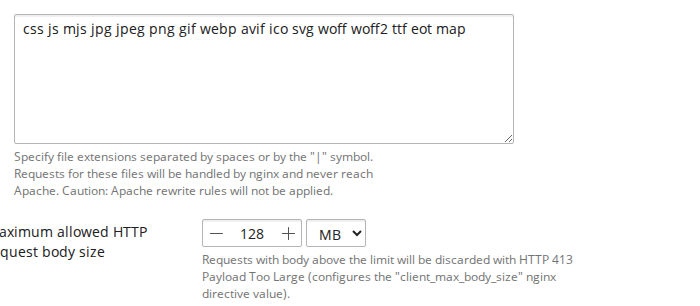
Requests for these files will be handled by nginx and never reach Apache. Caution: Apache rewrite rules will not be applied.
Which is exactly the benefit, and also the trap. Read the next section before you rely on it.
The trap that costs performance silently
Section titled “The trap that costs performance silently”Because those files never reach Apache, .htaccess no longer applies to them. Plesk’s documentation spells out the consequence:
requests for files with the specified extensions never reach Apache at all. Consequently, they do not pass through Apache handlers. This means, for example, that rewrite rules or
.htaccessdirectives are not applied.
Most sites do not care. But a large number of WordPress performance plugins work by writing browser-caching rules into .htaccess, in blocks that look like this:
<IfModule mod_expires.c> ExpiresActive On ExpiresByType image/jpeg "access plus 1 month" ExpiresByType text/css "access plus 1 month"</IfModule>Turn static serving on, and those rules stop applying to exactly the files they were written for. Your server logs look wonderful. Your visitors start re-downloading your stylesheet on every page, because nothing is telling their browser it may keep it.
This is the single most common way this change goes wrong, and it is silent. Nothing errors. The site simply gets slower a week later, and it shows up as a drop in a page-speed score rather than as a fault.
The fix is the Expires field on the same page. Under Expires, select Enter custom value and set 30 days. Leave response with Expires headers for static files only selected. That puts the caching headers back, applied by the server rather than by a file Apache is no longer reading.
Plesk’s documentation contains a note that appears to say otherwise: “If nginx is enabled, only files served by Apache will have the expires header.” That is not what happens in this configuration, and it was measured rather than assumed. On 4 August 2026, assets on Noiz sites running the settings above were confirmed as served by nginx and not by Apache, while returning cache-control: max-age=2592000 on the same request. The caption Plesk prints beside the field in the live panel is the one that matches that behaviour:
The “Expires” header will only be added to static files. Which files are treated as static is governed by the “Smart static files processing” and “Serve static files directly by nginx” options.
Confirm it on your own site with the command below rather than trusting either sentence.

You can confirm it worked from any terminal:
curl -sI https://yourdomain.com/wp-includes/css/dashicons.min.css | grep -i -E 'expires|cache-control'A healthy response looks like this:
expires: Thu, 03 Sep 2026 13:03:21 GMTcache-control: max-age=2592000If both lines are missing, the Expires value has not been set, or it was set to Default.
No terminal? Your browser shows you the same two lines. Open your site, press F12, go to the Network tab, tick Disable cache so the browser fetches a fresh copy instead of reusing the one it already holds, then reload the page. Click your stylesheet in the list and read the Response Headers panel. You are looking for the same expires and cache-control lines. That panel also carries the server header, and the list shows the status code of every request, so it covers the first two checks further down this guide as well. The one it will not reproduce is the cache MISS then HIT test, because a browser carries cookies and a normal visit therefore shows BYPASS.
The extension list, and why to narrow it
Section titled “The extension list, and why to narrow it”Plesk ships a preconfigured list of extensions in the Specify file extensions box, and its documentation does not print what that list contains. Read the box on your own domain before you rely on it, because every extension sitting in it is served straight from nginx.
That is the problem, and the reason follows directly from the sentence quoted above. Files served by nginx never reach Apache, so they never pass through any Apache handler. That includes the ones enforcing a password-protected directory or an .htaccess deny rule. If a document or archive extension is in that box, the rule guarding those files is no longer being applied, and documents and archives are precisely the file types people put behind such rules.
Noiz recommends replacing the default with an assets-only list. Nothing in it is a file anyone gates behind a login:
css js mjs jpg jpeg png gif webp avif ico svg woff woff2 ttf eot mapExtensions are separated by spaces or by the | character, and you can add to the list at any time. If you serve a file type that genuinely belongs in it, add that one extension rather than restoring the whole default.
Two settings that interact in ways the page does not show
Section titled “Two settings that interact in ways the page does not show”Worth knowing before you change anything, because both are invisible from the panel.
Turning static serving on switches Smart static files processing off. Plesk documents this exactly: enabling Serve static files directly by nginx “automatically disables the default Smart static files processing mode, even if the checkbox of the latter remains selected”. So the panel can show both ticked while only one is doing anything. Trust the extension list, not the tick.
Smart static files processing has a size floor. In that mode, Plesk’s documentation notes that static files smaller than 1 KB are served by Apache rather than nginx. The extension list has no such floor: files with a listed extension are served by nginx whatever their size. This is why a small icon can behave differently from a large one under Smart mode, and why the extension list is the more predictable choice.
Page caching, if your plan includes it
Section titled “Page caching, if your plan includes it”Enable nginx caching puts a copy of rendered pages in front of PHP. It is a large win on a content site and it needs care on a shop.
The safety property is that any cookie at all bypasses the cache. Plesk states it plainly for the Cache requests with cookies field:
Nginx will not cache HTTP requests with cookie headers containing at least one cookie name that is not specified in the field.
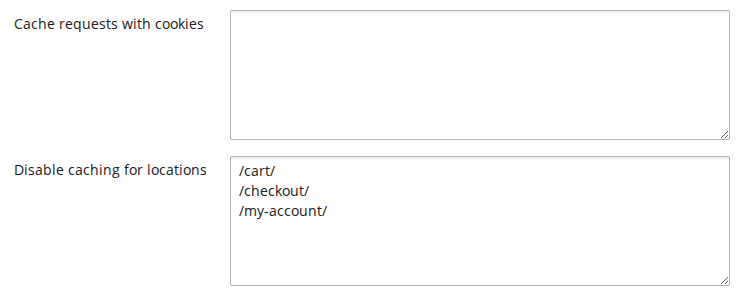
That field is an allowlist, and the correct value for a shop is empty. Empty means every request carrying any cookie is served fresh, which is what stops a logged-in customer, or anyone with something in a basket, ever being handed a page built for someone else. Adding a session cookie to that field is the one change on this page that could serve one customer’s basket to another. Do not.
Three consequences to expect, so nobody reports them as faults:
-
The hit rate will look low. Only first-time visitors with no cookies at all get cached content. An analytics or consent cookie is enough to bypass, and a browser hard reload bypasses too. That is the design working, not failing.
-
Set a useful timeout. Cache timeout decides how long a cached page stays valid. A few seconds caches almost nothing worth having; 10 minutes is a reasonable starting point on a site whose content does not change minute to minute.
-
Exclude the pages that must never be cached. Put these in Disable caching for locations, one per line:
/cart//checkout//my-account/Use the paths your own site actually uses. If your basket lives at
/basket/, that is the line you need.
How to check the configuration is working
Section titled “How to check the configuration is working”Three commands, run from any terminal, against your own domain.
Assets are being served by nginx and carry a cache lifetime:
curl -sI https://yourdomain.com/path/to/style.css | grep -i -E 'server|expires|cache-control'Pages still work and still go through Apache and PHP:
curl -s -o /dev/null -w "%{http_code}\n" https://yourdomain.com/a-real-page/That must be 200. If pages break after changing these settings, the cause is almost always a rule in .htaccess that was being applied to something now served by nginx.
If caching is on, watch a request move from miss to hit:
curl -sI https://yourdomain.com/ | grep -i x-cache-statusRequesting the same page twice with no cookies should show MISS and then HIT. Sending a cookie should show BYPASS.
Troubleshooting
Section titled “Troubleshooting”Symptom: images and stylesheets return 404 after enabling static serving. A plugin is generating those files through PHP rather than serving them from disk, so nginx cannot find them. Remove that extension from the list, or ask Noiz support to look at the specific path.
Symptom: a password-protected directory stopped asking for a password. Any extension in the list is served straight from nginx, past Apache’s check, so narrowing the list only restores the password prompt for the file types you take out of it. Documents and archives come back; the CSS, JavaScript, images and fonts inside that directory are still served without a password, because those extensions are still in the list. If a site relies on password-protected directories, turn Serve static files directly by nginx off for that site, or open a ticket and the protection can be re-applied at the nginx level.
Symptom: page-speed scores dropped a few days after the change, with no other cause. Browser-caching headers were being set from .htaccess and are no longer reaching the files. Set the Expires value as described above.
Symptom: uploads fail with 413 Payload Too Large. That is the Maximum allowed HTTP request body size field on the same page, not a PHP setting. Raise it, then raise PHP’s own upload limits to match. If it still fails, a third limit is involved: see How to fix HTTP 413 “Request Entity Too Large” upload errors in Plesk.
Symptom: a rewrite or redirect rule stopped working, but only for certain file types. Those file types are in the extension list and no longer reach Apache. Either drop the extension from the list, or move the rule out of .htaccess.
Need a hand?
Section titled “Need a hand?”Noiz applies this configuration as standard on managed plans, including the narrowed extension list and the browser-caching headers that go with it. If you would like your site checked against it, or you have an .htaccess rule you are not sure survives the change, open a ticket and the team will take a look.
[noiz] | disrupt the signal