

How to Log In to cPanel
cPanel is the control panel for your hosting account. It is where you manage files, email accounts, databases, domains, backups and SSL certificates, and almost every other cPanel guide begins by asking you to sign in.
This article covers the two ways to get there on Noiz hosting: through the client area, which needs no separate password, and directly in a browser, which is useful when the client area is not to hand.
Last reviewed: 29 July 2026, against the current cPanel & WHM release. This guide is written for Noiz hosting and is kept current against cPanel. It complements, and does not replace, the official cPanel documentation linked below.
Official Documentation Reference
Section titled “Official Documentation Reference”Prerequisites
Section titled “Prerequisites”- An active Noiz hosting account on cPanel.
- Your cPanel username and password, sent to you by email when the account was set up. You do not need these for the client area route below.
Log In to cPanel From the Client Area (Recommended)
Section titled “Log In to cPanel From the Client Area (Recommended)”This is the easier route, and the one to use if you are not sure of your cPanel password. The client area signs you in automatically, so there is no second password to remember.
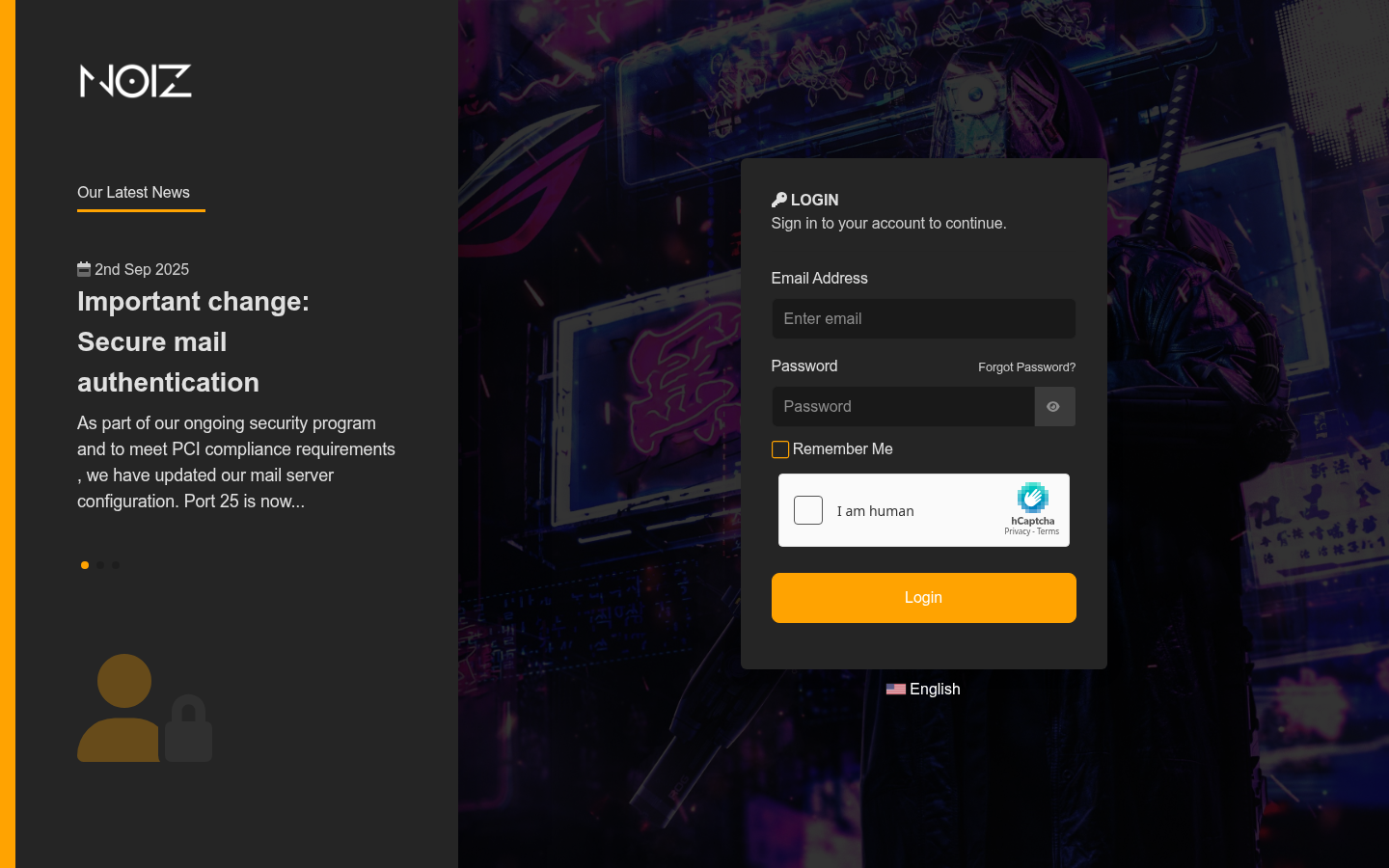
Step 1: Sign in to the Noiz client area using the Login button at the top right of the website.
Your username is your billing email address. If you cannot remember the password, use the password reset link below the login form.
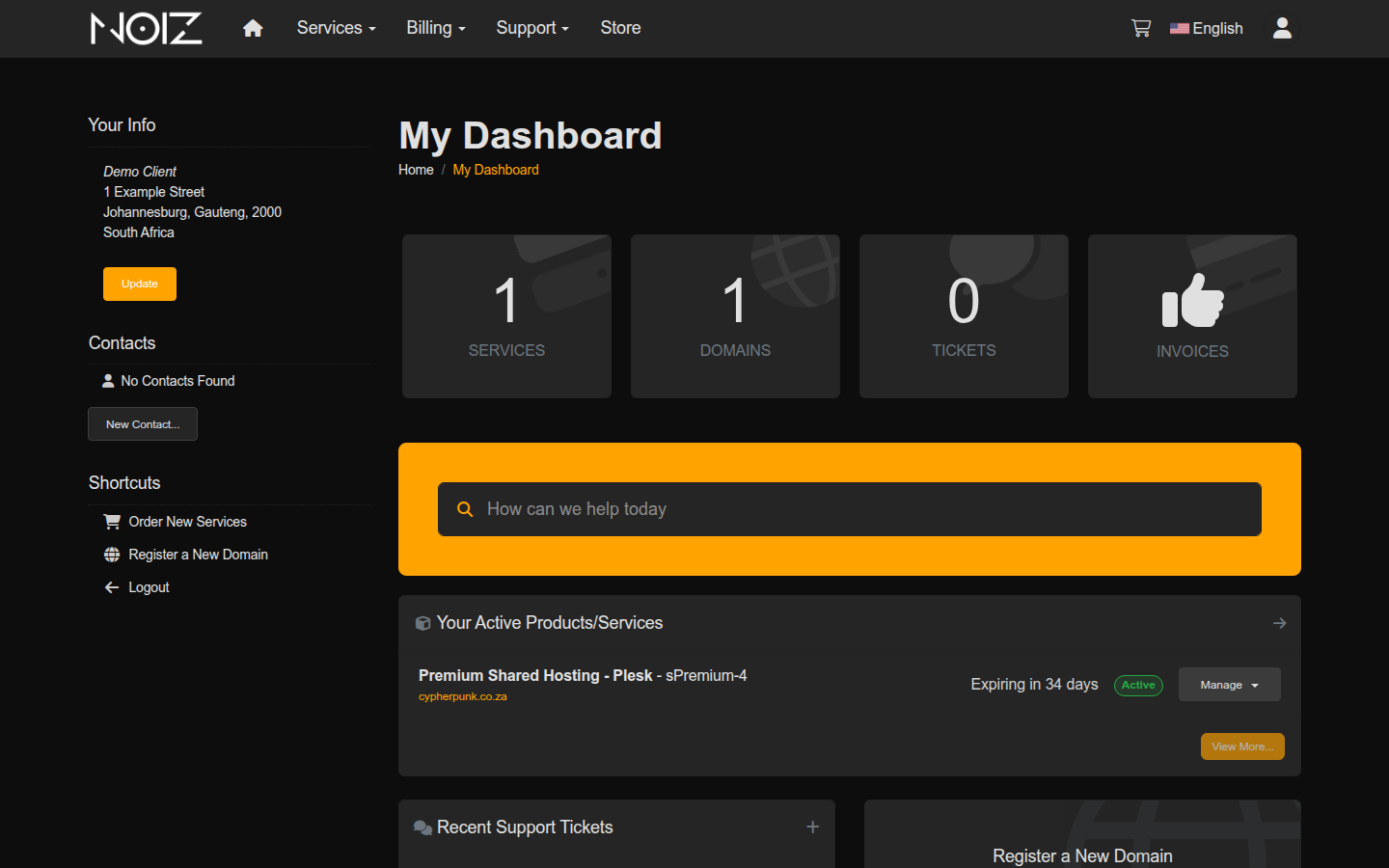
Step 2: From the dashboard, open My Services, either from the Services tile or the Services menu in the top navigation.
Step 3: Click your hosting plan in the list to open its details page. Click the tile itself rather than the domain name, because the domain name opens your website instead.
Step 4: Click Log in to cPanel in the Actions panel in the left-hand sidebar.
cPanel opens in a new tab, already signed in. The same page carries shortcuts straight to common tools, so you can jump to the file manager or your email accounts without going through the cPanel home screen first.
Log In to cPanel Directly
Section titled “Log In to cPanel Directly”Use this route when you want to reach cPanel without going through the client area, or when you are giving a developer access to the hosting account without giving them your billing login.
Step 1: In your browser, go to your domain followed by port 2083:
https://yourdomain.com:2083/Replace yourdomain.com with your own domain. cPanel listens on port 2083 for secure connections, so the port number is not optional. Leaving it off takes you to your website instead.
Step 2: Enter your cPanel username and password, then click Log in.
These are not the same credentials as your client area login. They were sent to you when the hosting account was created.
If the Browser Warns You About the Certificate
Section titled “If the Browser Warns You About the Certificate”Going to https://yourdomain.com:2083/ often produces a warning along the lines of “Your connection is not private” or “Potential Security Risk Ahead”.
This is a name mismatch, not a broken connection. The certificate on the control panel is issued to the server hostname, and you have asked for your own domain, so the browser correctly points out that the two do not match. The connection is still encrypted.
Two ways to deal with it:
- Preferred: use the server hostname instead of your domain, in the form
https://server-hostname:2083/. The certificate matches, so no warning appears. Your server hostname is in your welcome email, and Noiz support can confirm it. - Acceptable: click Advanced, then Continue or Accept the Risk and Continue.
Never accept a certificate warning on a page that asks for card details or on a site you did not expect to see one on. On a control panel reached by port number, on a hostname you recognise, it is expected.
If You Cannot Log In
Section titled “If You Cannot Log In”You do not know your cPanel password. Use the client area route above, which does not need it. To set a new one, see How to Reset Your cPanel Account Password.
The page does not load at all. Check that you included :2083 and that the address begins with https:// rather than http://. If the address is right and the page still does not load, your IP address may have been blocked by the server firewall after repeated failed logins. Contact Noiz support with your current IP address and it can be cleared.
Your username and password are rejected. cPanel passwords are case sensitive. Check that Caps Lock is off, and that you are using the cPanel password rather than your client area or email password. Three accounts commonly get confused: the client area login (your billing email), the cPanel login (the hosting account), and individual email account passwords.
You reach a login screen but it is not cPanel. Port 2083 is cPanel. If you see a different control panel, your hosting account is on a different panel; see How to Log In to Plesk instead.
Once You Are In
Section titled “Once You Are In”A few things worth doing on a first visit:
- Turn on two-factor authentication. cPanel holds your files, databases and email, so it deserves a second factor.
- Set a contact email address under Preferences, so password resets and account notifications reach you.
- If you mainly want to read email, you do not need cPanel at all. Go straight to webmail.
Summary
Section titled “Summary”There are two routes into cPanel. The client area route needs no cPanel password and is the one to use day to day. The direct route, https://yourdomain.com:2083/, is there when you want it, and the certificate warning it produces is a hostname mismatch rather than a fault.
If neither route works, contact Noiz support with your domain name and the exact error you see.
[noiz] | disrupt the signal