

How to Open a Support Ticket in the Noiz Console
This guide shows you how to open a support ticket in the Noiz Console and what to include so the team can help you quickly. A ticket keeps the full history of your request in one place and is the best channel for anything that needs investigation.
Last reviewed: 1 August 2026, against the current Noiz client area. It is kept current as the Console changes.
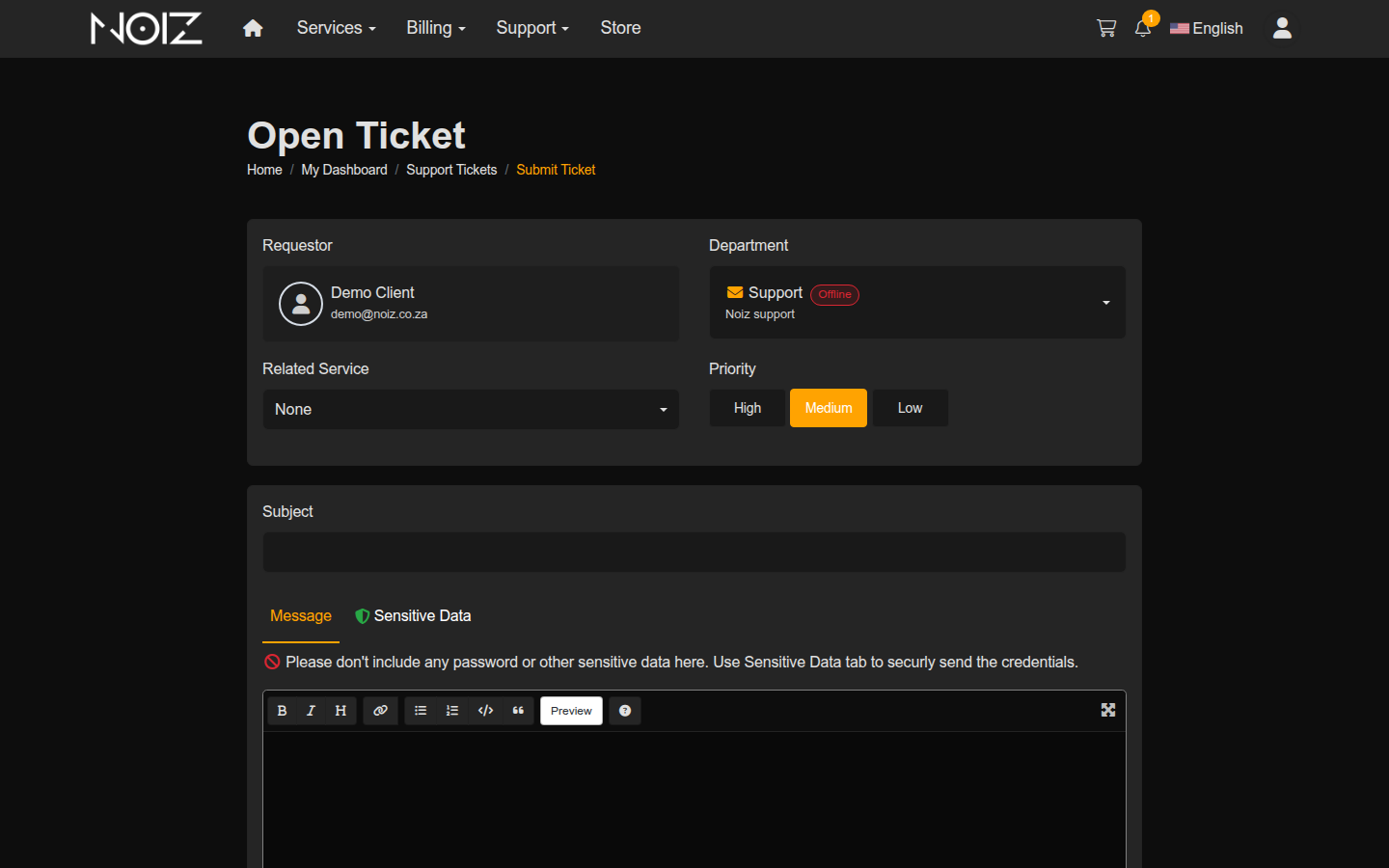
Open a ticket
Section titled “Open a ticket”- Log in to the Console.
- Click Support in the top menu, then Open Ticket (or go to your Support Tickets and click to open a new one).
- Choose the Department that matches your request (for example Support).
- Enter a clear Subject and your Message, then submit.
What to include
Section titled “What to include”A good ticket gets a faster, more useful answer. Include:
- The domain or service the question is about.
- What you were trying to do and what happened instead, in plain terms.
- The exact error message if there is one (copy it in full, or attach a screenshot).
- When it started, and anything that changed just before.
Track the reply
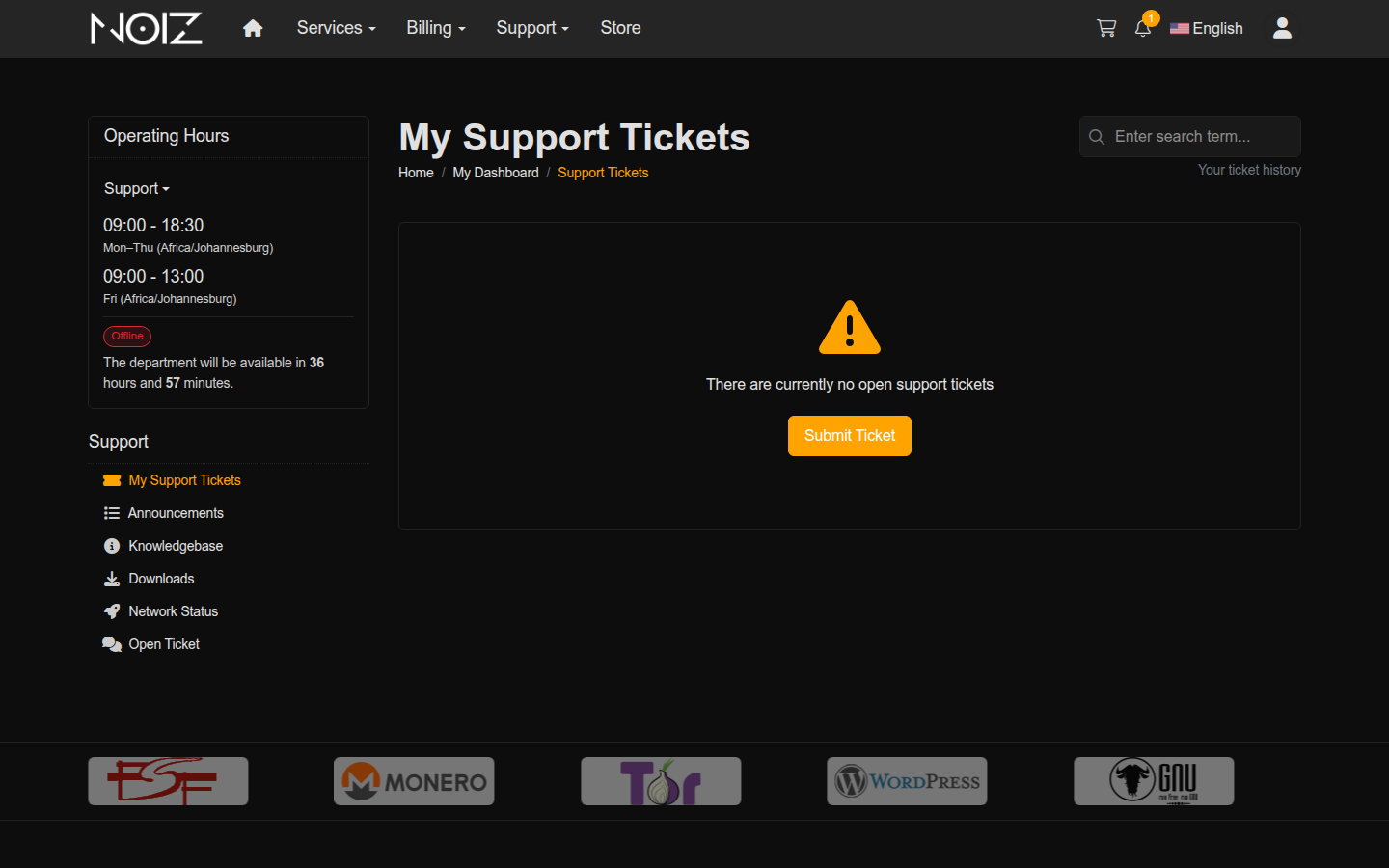
Section titled “Track the reply”- Click Support, then Support Tickets to see all your tickets and their status.
- Click a ticket to read the replies and respond. Noiz also emails you when the team replies, so you can follow up from the ticket or by replying to the email.
Other ways to reach Noiz
Section titled “Other ways to reach Noiz”A ticket is best for anything that needs a written record or investigation, but it is not the only route. For quick questions you can also email or message the team; every route reaches the same people. See How to Contact Noiz for Support for all the options.
Do not put passwords or other secrets in the ticket message itself. If Noiz needs a credential to help you, the ticket form has a separate Sensitive Data area for it, which is the safe place to send it.
[noiz] | disrupt the signal