

How to Pay Your Invoice by Card
Paying by credit or debit card is the quickest way to pay a Noiz invoice and the way we recommend. The invoice is marked paid the moment your bank approves it, and your card is saved so future invoices are paid automatically.
Last reviewed: 21 October 2026, against the current Noiz Console.
Official Documentation Reference
Section titled “Official Documentation Reference”- Stripe: Security at Stripe, how our card processor stores and protects card details.
Before You Start
Section titled “Before You Start”- Your Noiz Console login. See How to Log In to the Console.
- A credit or debit card. Keep your phone nearby in case your bank asks you to approve the payment.
Pay an Invoice by Card
Section titled “Pay an Invoice by Card”-
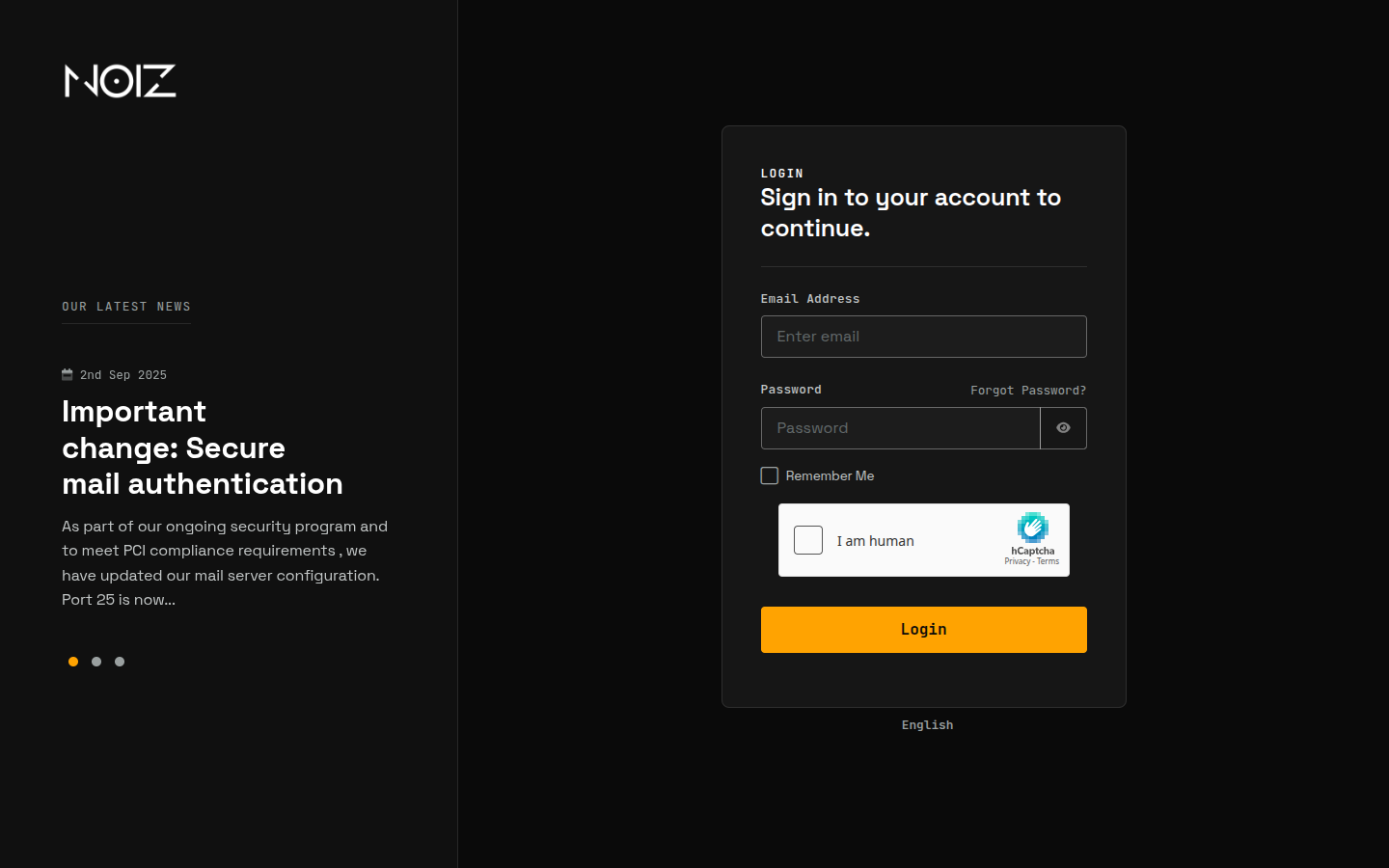
Log in. Go to https://www.noiz.co.za/clientarea.php?action=invoices and sign in with your email address and password.
-
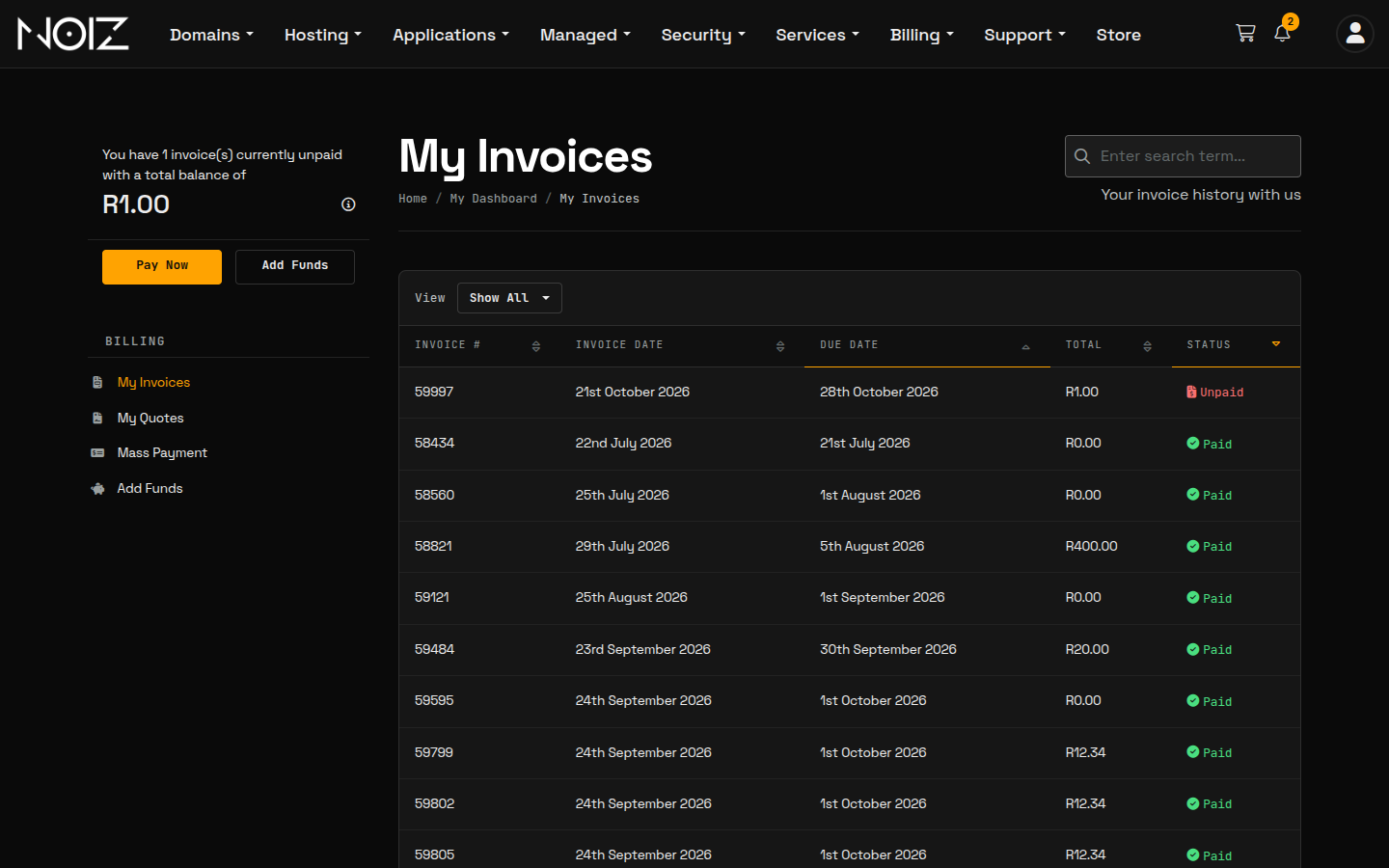
Find the invoice. Your invoice list opens after you sign in. From anywhere else in the Console, click Billing > My Invoices. Unpaid invoices show Unpaid in the Status column.
-
Choose Stripe. Click the invoice to open it. In the panel on the right, under Total Due, set Payment Method to Stripe, then click Pay Now.

-
Enter your card. On the Checkout page, under Make Payment, choose Enter New Card Information Below (or pick a card you saved before). Fill in Card Number, Expiry Date and CVV/CVC2, and check your Billing Address. Card Description is optional: a name to help you recognise the card later.

-
Pay. Click Submit Payment. If your bank asks, approve the payment in your banking app or enter the code it sends you.
-
Done. You return to the invoice, which shows Thank You! Your payment was successful. and the status Paid. Your receipt arrives by email, and the charge appears on your bank statement under the name NOIZ.
Your card is now saved, and future invoices are charged to it automatically one day before they are due. To see how that works, or to change the card, see How to Set Up a Recurring Card Payment.
Your Saved Cards
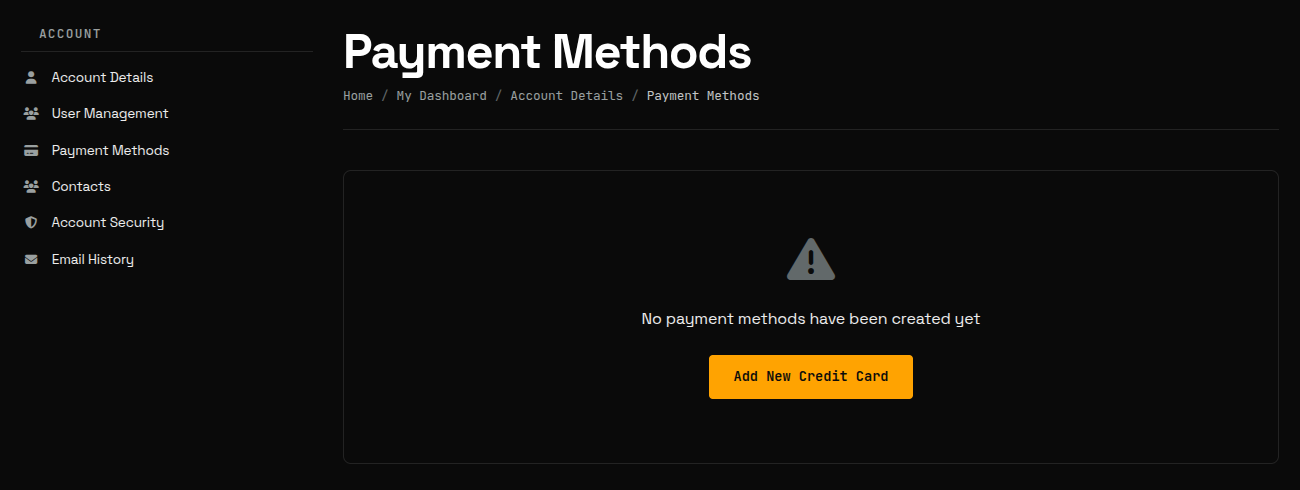
Section titled “Your Saved Cards”Saved cards are listed under Payment Methods: click the account icon at the top right of the Console and choose Payment Methods. From there you can click Add New Credit Card to add another, and Set as default to choose which card is charged automatically.
If a Payment Does Not Go Through
Section titled “If a Payment Does Not Go Through”- Card declined (insufficient funds, expired card or a bank block): the invoice stays Unpaid. Try another card, or ask your bank why it declined.
- Your bank asks for approval on every payment: you can pay by hand as above, but the card cannot be charged automatically later. Pay each invoice by hand when the email arrives.
- Money left your account but the invoice still shows Unpaid: email support@noiz.co.za with your invoice number and your bank’s confirmation. Do not pay again.
Other Ways to Pay
Section titled “Other Ways to Pay”South African clients can also pay by EFT, and anyone can pay with Monero (XMR). See How to View and Pay an Invoice for both.
Need Help?
Section titled “Need Help?”If you are stuck at checkout, contact Noiz support:
- Email: support@noiz.co.za
- Ticket: open a support ticket
- Signal: Contact Noiz on Signal
[noiz] · disrupt the signal
[noiz] | disrupt the signal