

How to View and Pay an Invoice in the Noiz Console
This guide shows you where to find your invoices in the Noiz Console, the ways you can pay them, and what to do if a payment does not show.
Last reviewed: 21 October 2026, against the current Noiz Console.
Find Your Invoices
Section titled “Find Your Invoices”- Log in to the Console.
- Click Billing > My Invoices.
- Your invoices are listed newest first. The Status column shows whether each one is Paid, Unpaid or Cancelled.
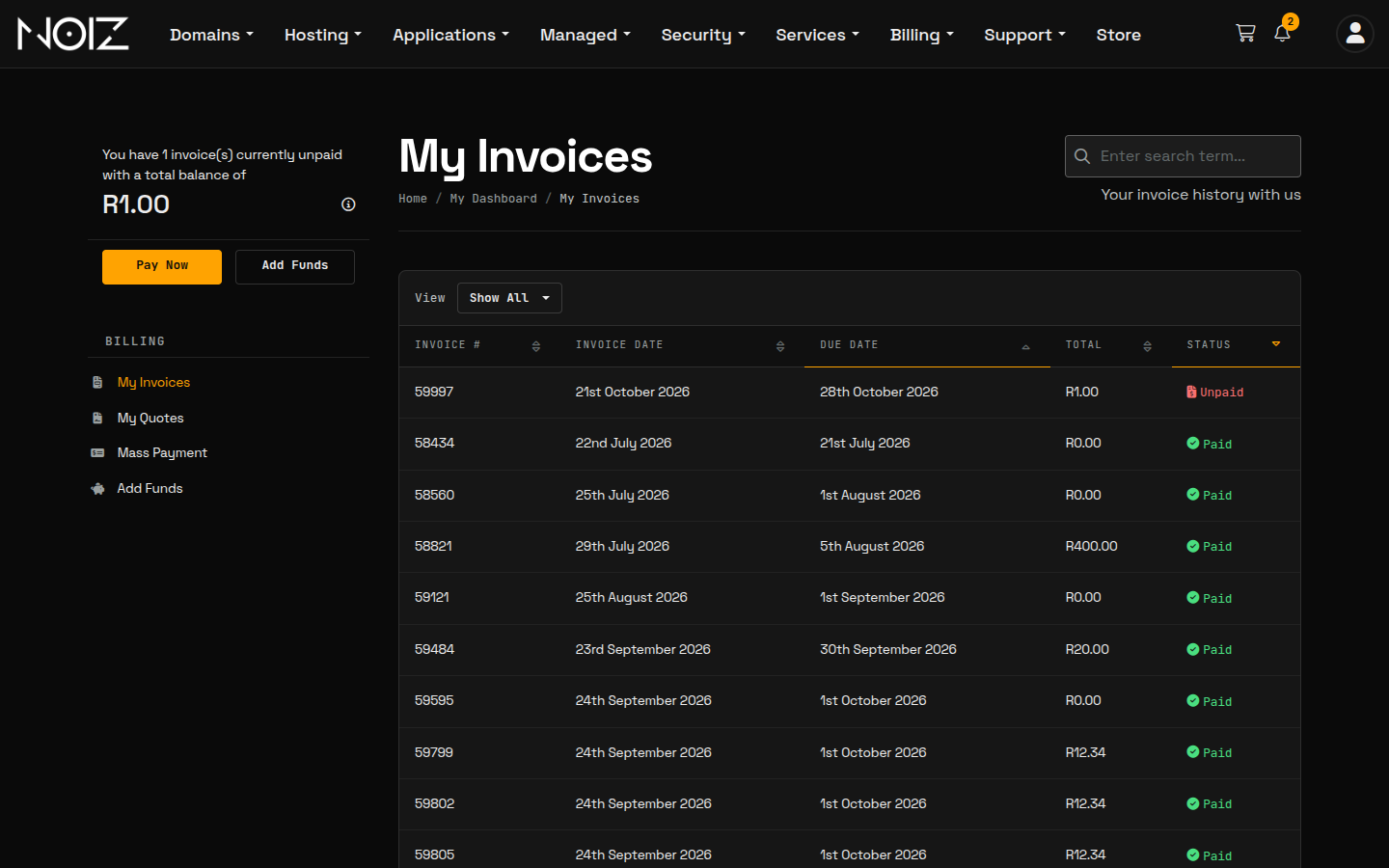
Click an invoice to open it and see what it is for, the Total Due and how to pay it.
Ways to Pay
Section titled “Ways to Pay”1. Card (recommended)
Section titled “1. Card (recommended)”Set Payment Method to Stripe and click Pay Now. Your invoice is marked paid straight away, and your card is saved so future invoices are paid automatically.
Step by step: How to Pay Your Invoice by Card.
2. EFT (South African clients)
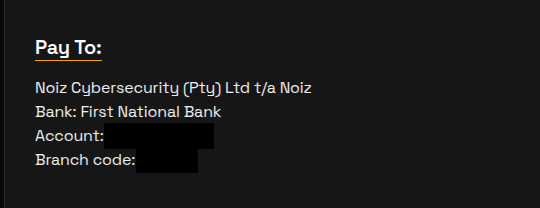
Section titled “2. EFT (South African clients)”EFT is not listed under Payment Method, but we accept it from South African clients.
- Transfer the invoice’s Total Due to the bank account shown under Pay To on your invoice.
- Use your invoice number as the payment reference.
- Email your proof of payment to support@noiz.co.za.
We allocate the payment to your invoice once it reaches our account. If you have a saved card, it is charged one day before the due date, so make the transfer well before then to avoid paying twice.
3. Monero (XMR)
Section titled “3. Monero (XMR)”Set Payment Method to Monero (XMR). A 10% discount is taken off the invoice straight away, and the invoice shows the exact XMR amount and the address to send it to. After paying, paste your transaction ID into the box on the invoice so we can confirm it. If you switch back to card, the discount is removed.
Step by step: Pay with Monero (XMR).
If a Payment Does Not Show
Section titled “If a Payment Does Not Show”- Card: the amount left your account but the invoice still shows Unpaid? Email support@noiz.co.za with your invoice number and your bank’s confirmation. Do not pay again.
- EFT: check that you emailed your proof of payment. If the invoice still shows Unpaid two working days after the transfer, email it again with your invoice number.
- Monero: check that you submitted your transaction ID on the invoice. If you did and the invoice still shows Unpaid, reply on your payment ticket with your invoice number and transaction ID.
For anything else, contact Noiz support.
[noiz] | disrupt the signal