

How to Edit the .htaccess File in the cPanel File Manager
The .htaccess file is a per-directory Apache configuration file that controls redirects, URL rewriting, access rules, custom error pages and more for your website. This guide shows you how to find, create and edit .htaccess safely from the File Manager in cPanel, without needing FTP or SSH access.
The file name begins with a dot, which makes it a hidden file, so it will not appear in File Manager until you enable hidden files. That is the step most people miss.
Last reviewed: 27 July 2026, against the current cPanel & WHM release. This guide is written for Noiz hosting and is kept current against cPanel. It complements, and does not replace, the official cPanel and Apache documentation linked below.
Official Documentation Reference
Section titled “Official Documentation Reference”Prerequisites
Section titled “Prerequisites”- An active Noiz cPanel hosting account and your login details.
- Knowing which website or directory the change applies to. A site’s document root is usually the
public_htmldirectory.
Editing .htaccess in File Manager
Section titled “Editing .htaccess in File Manager”- Log in to your cPanel account.
- In the Files section, click File Manager.

- Navigate to the directory that holds the
.htaccessfile. To edit the.htaccessfile for your main website, open thepublic_htmldirectory. - If the
.htaccessfile is not visible, click Settings at the top right of the File Manager toolbar, tick Show Hidden Files (Dotfiles) in the dialog, and click Save. The.htaccessfile should now appear. If it still does not exist, create a new file named.htaccessin that directory.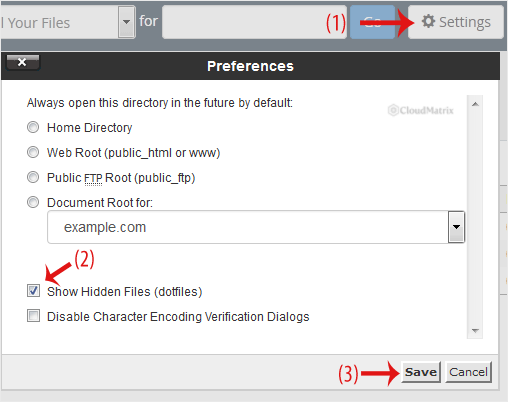
- Right-click the
.htaccessfile and choose Edit from the context menu.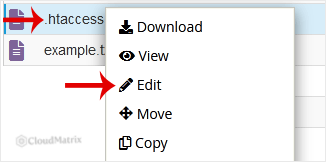
- If an encoding confirmation dialog appears, click Edit to continue.
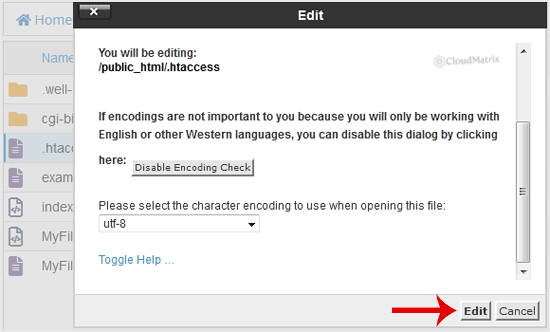
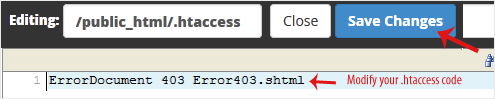
- Make your changes, then click Save Changes. The change takes effect immediately on the next page load.
Before You Save: Back Up First
Section titled “Before You Save: Back Up First”A single syntax error in .htaccess can take your whole site offline with a 500 Internal Server Error, because Apache reads the file on every request. Before editing, copy the existing contents into a plain text file, or use Copy in File Manager to keep a backup such as .htaccess.bak. If a change breaks the site, restore the backup or remove the lines you added and save again.
Troubleshooting
Section titled “Troubleshooting”The site returns a 500 error after saving: the most recent edit contains invalid syntax or a directive your server does not permit. Restore your backup, or comment out the new lines by adding # at the start of each line, and save.
The .htaccess file still will not appear: confirm Show Hidden Files (Dotfiles) is enabled and that you are in the correct directory. If the file genuinely does not exist yet, use + File in the toolbar to create one named .htaccess (note the leading dot and no file extension).
Need a hand? Noiz support can review or edit your .htaccess file for you. Open a ticket from your Noiz client area and the team will assist.
[noiz] | disrupt the signal