

How to Log In to Plesk
Plesk is one of the most versatile and stable web hosting control panels available to shared hosting customers. It provides access to a comprehensive range of tools including a file manager, DNS editor, PHP settings, email account management, spam filters, and much more.
This tutorial outlines the different ways to access your Plesk control panel on Noiz hosting.
Last reviewed: 27 July 2026, against the current Plesk Obsidian release. This guide is written for Noiz hosting and is kept current against Plesk. It complements, and does not replace, the official Plesk documentation linked below.
Official Documentation Reference
Section titled “Official Documentation Reference”Log in to Plesk via the Client Area (Recommended)
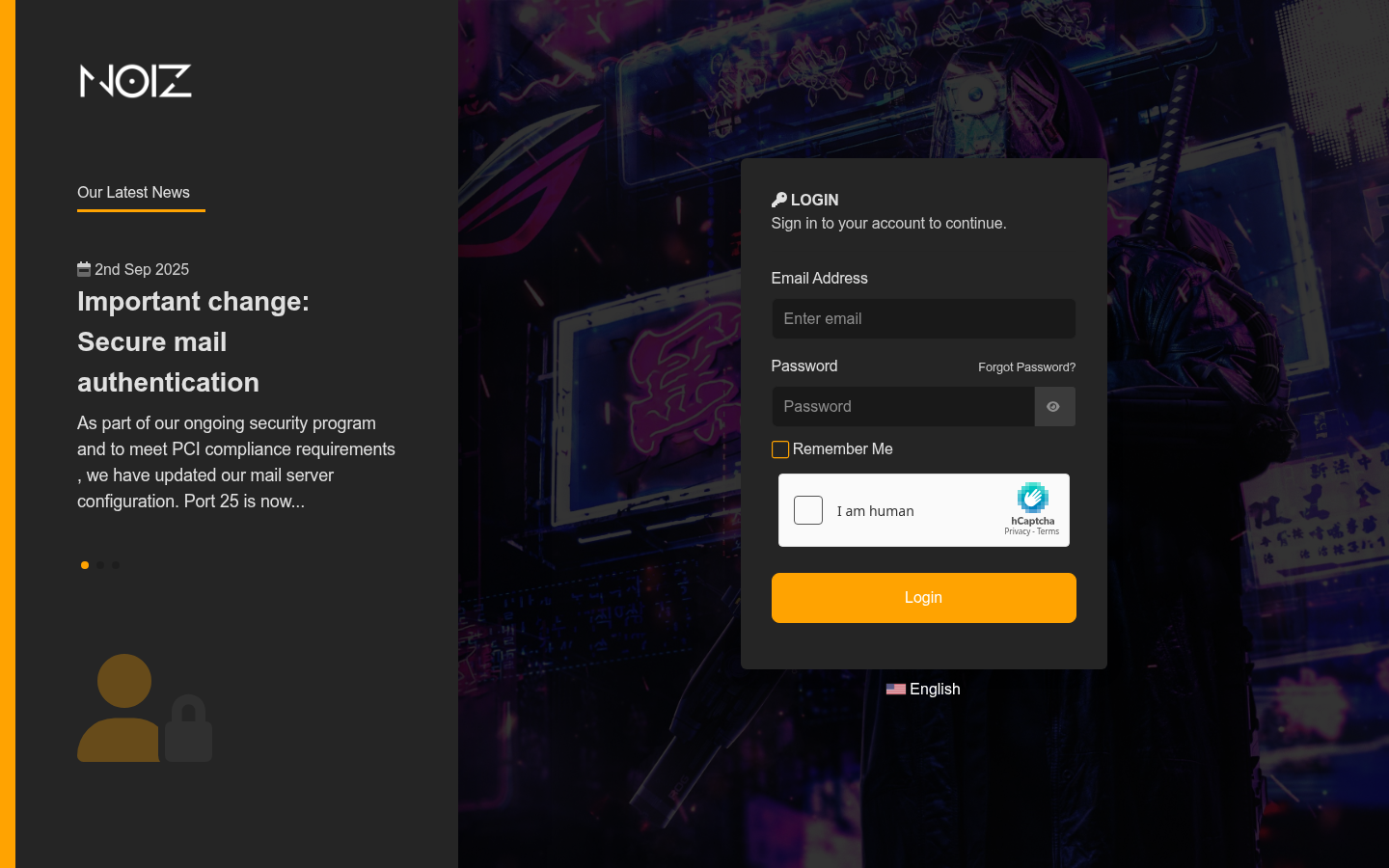
Section titled “Log in to Plesk via the Client Area (Recommended)”Step 1: Log in to the Noiz Client Area using the ‘Login’ button at the top right of the website.
If you don’t know your login details, use your billing email address. A Password Reset option is available below the login form.
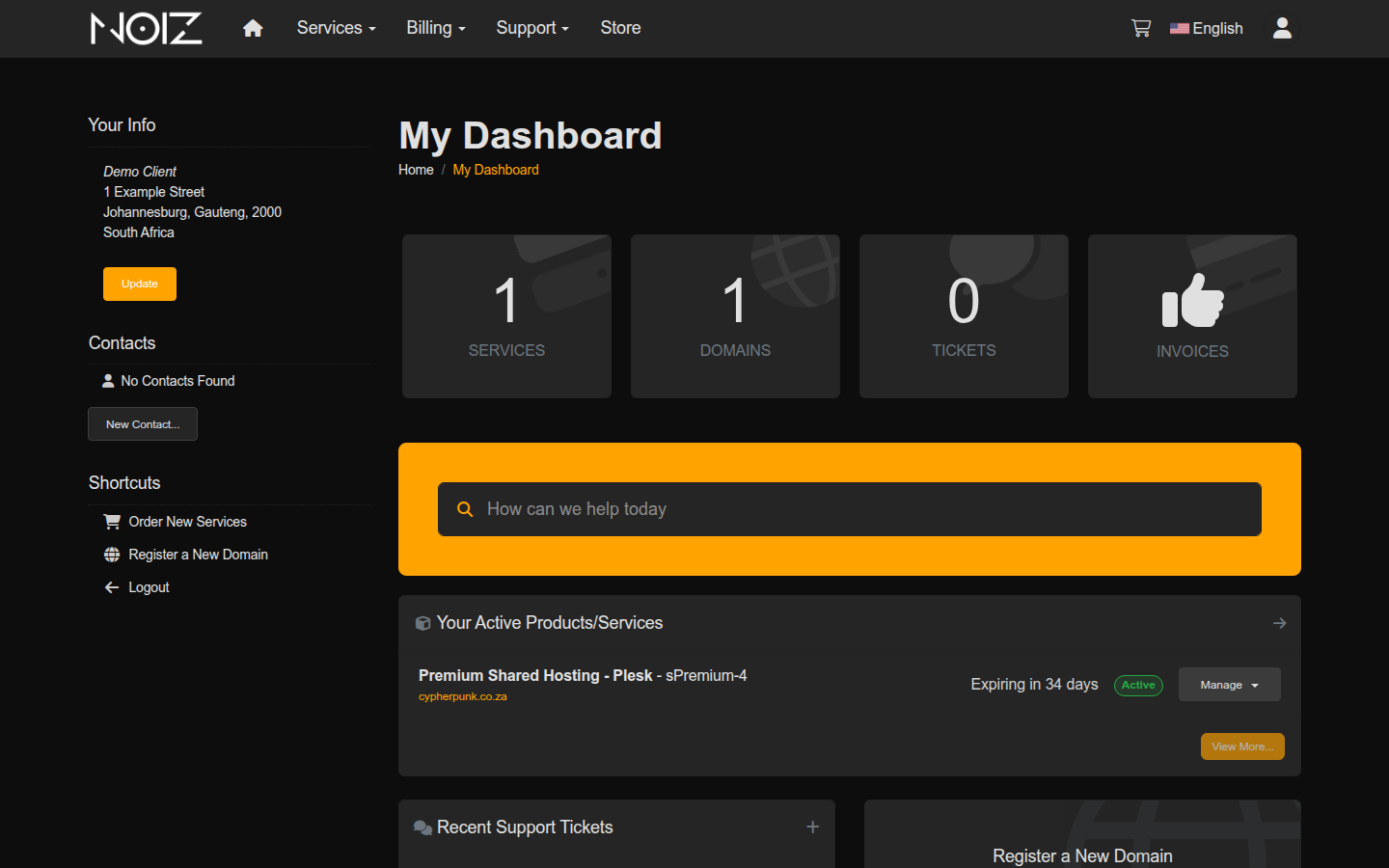
Step 2: From the Client Area Dashboard, click on the ‘Services’ tile, or select ‘My Services’ from the Services dropdown menu.
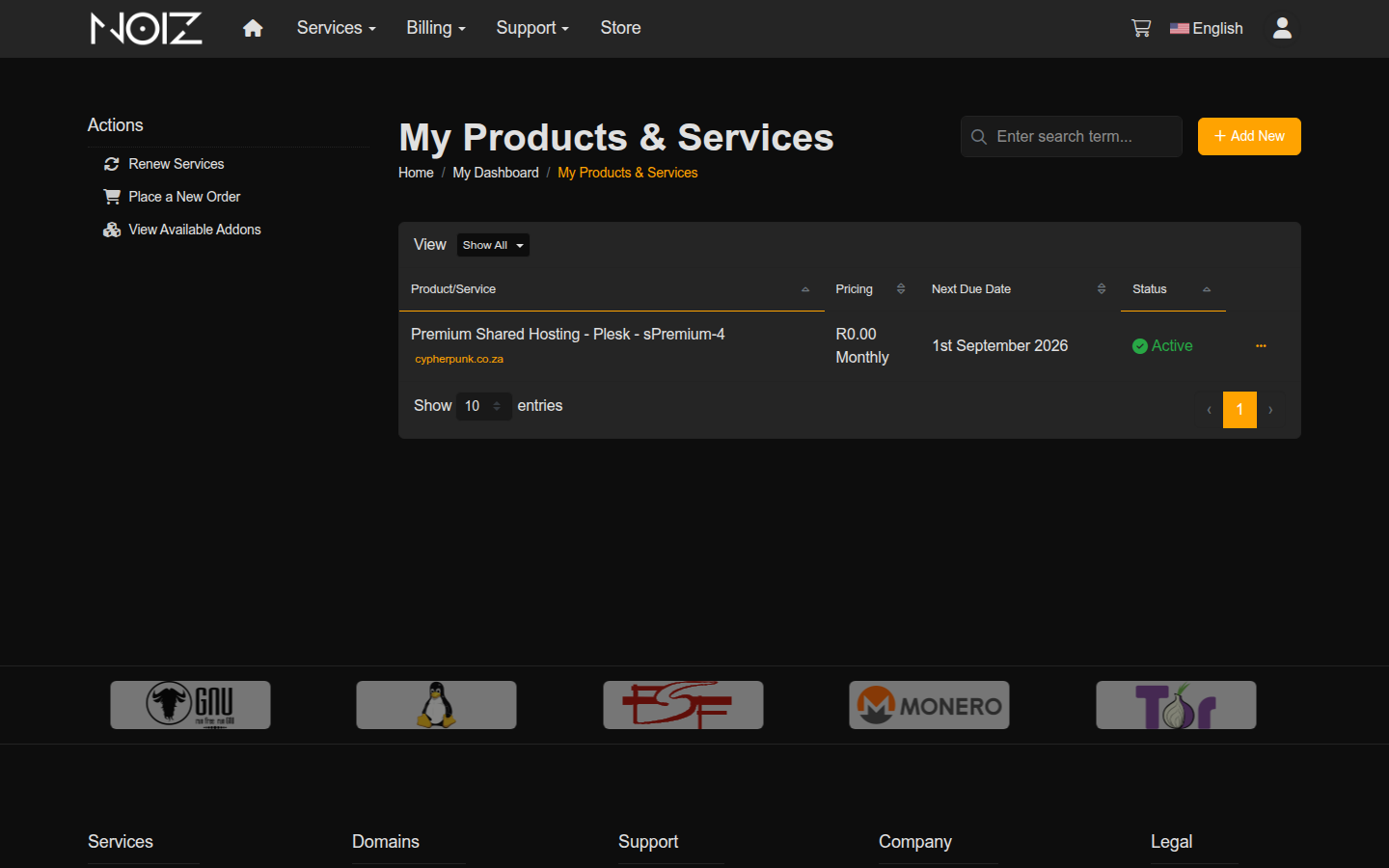
Step 3: Find your website hosting plan from the list and click anywhere in the tile area (not on the domain name itself, as that will open the website).
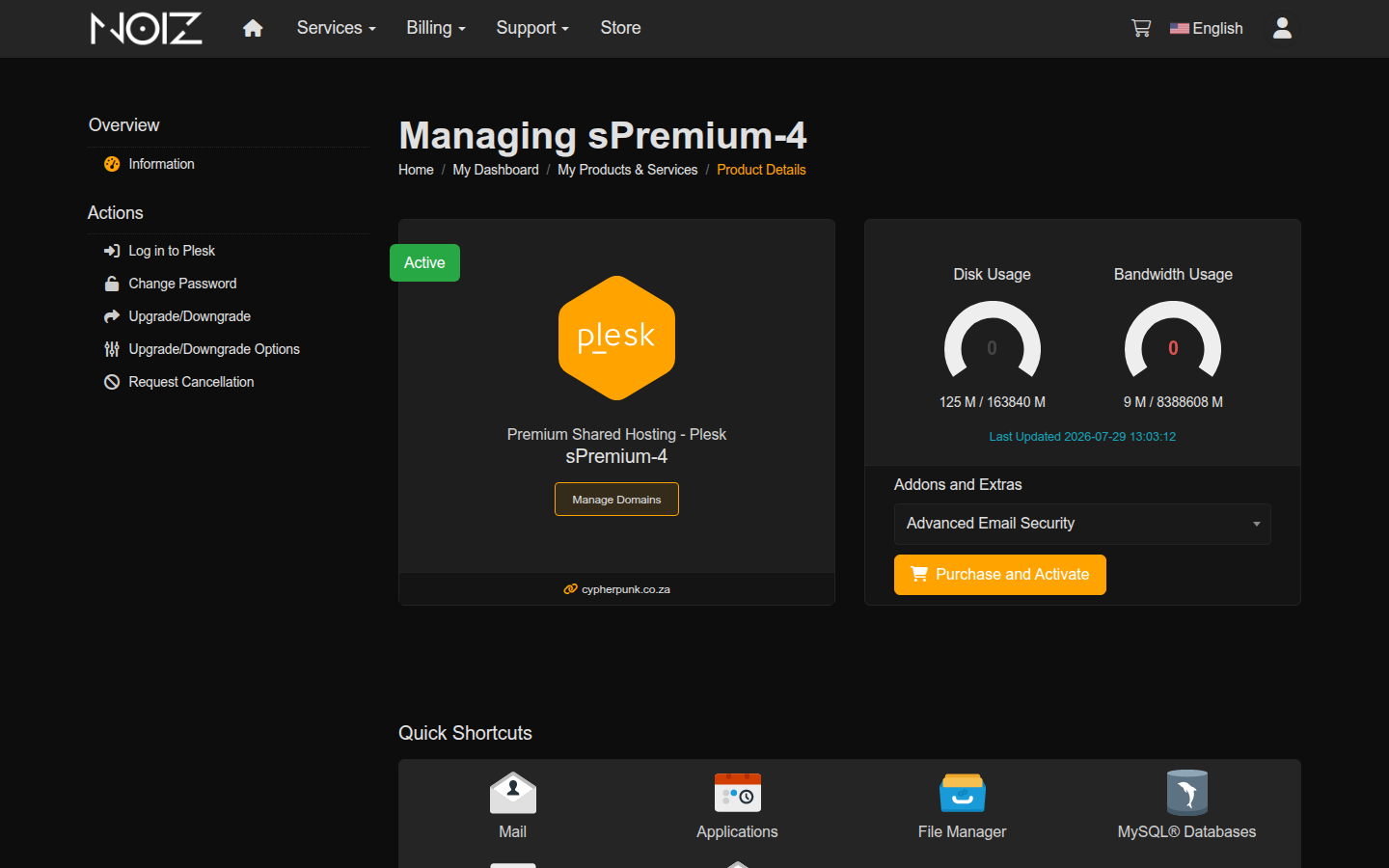
Step 4: Click the ‘Log in to Plesk’ button in the ‘Actions’ section of the left-hand sidebar.
You can also access common Plesk features directly from the ‘Quick Shortcuts’ section on the same page.
Done. A new window will open and you’ll be logged into Plesk for your selected subscription. Consider selecting the ‘Take the tour’ option to familiarise yourself with the interface.
Log in to Plesk Directly (Advanced)
Section titled “Log in to Plesk Directly (Advanced)”Every shared hosting subscription includes control panel access via a web browser. You can log in to Plesk directly using your domain name, IP address, or the server hostname.
Your Plesk login details (IP address, URL, and hostname) are sent to you by email when you sign up. If you can’t find the email, contact Noiz support.
Using the Server Hostname (Recommended)
Section titled “Using the Server Hostname (Recommended)”The Plesk SSL certificate is issued to the server hostname, so logging in through the hostname gives you a secure connection with no browser warning.
Step 1: Open your web browser.
Step 2: Navigate to https://server-hostname:8443/, replacing server-hostname with the Plesk server hostname from your signup email. The Plesk login page is served on port 8443, so the port number is required.
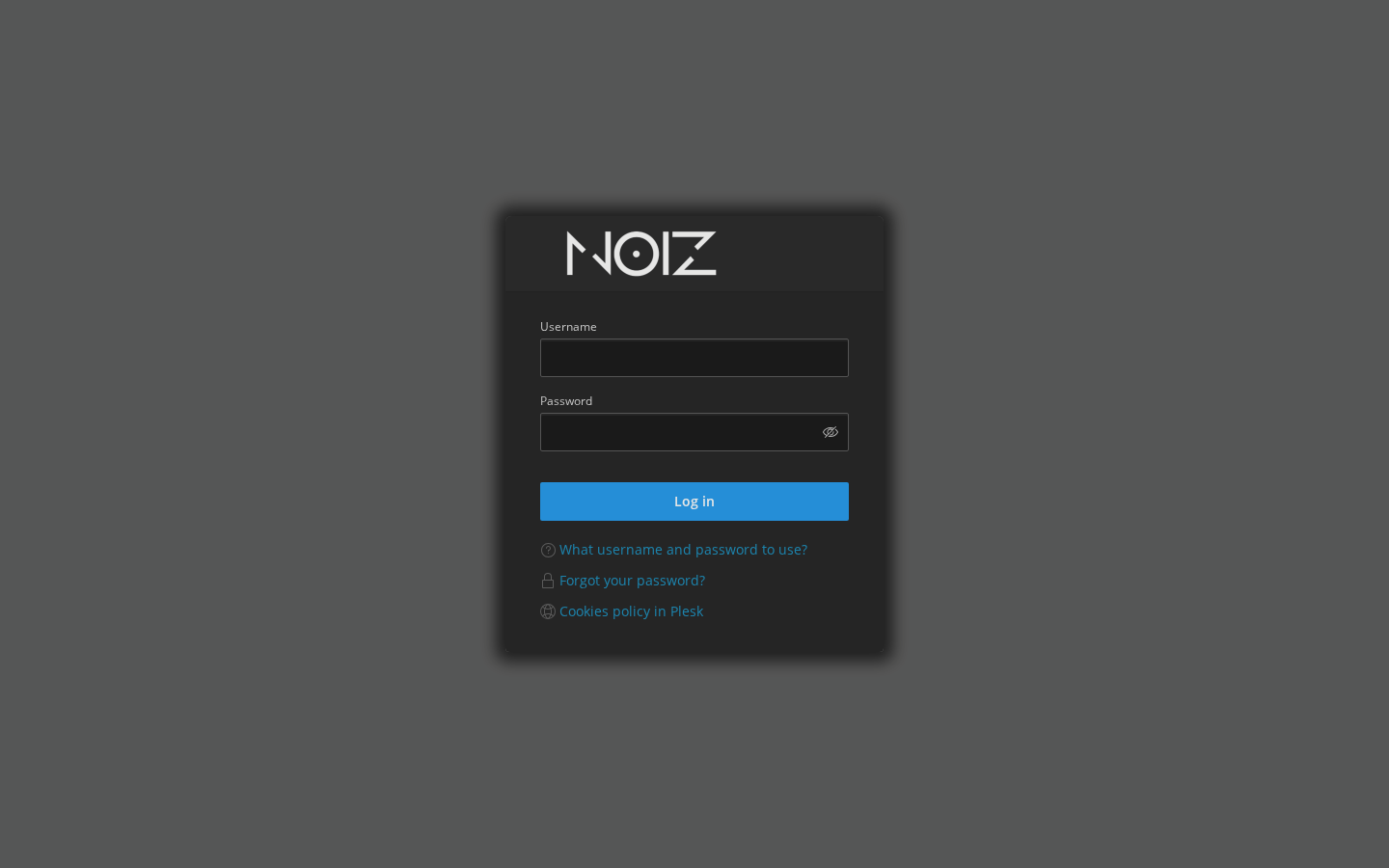
Step 3: Enter your Plesk username (or email address) and password. These credentials were sent to you when you signed up. If you’ve forgotten them, use the ‘Forgot your password?’ link or contact Noiz support.
Using Your Domain Name
Section titled “Using Your Domain Name”You can also open https://yourdomain.com:8443/ (replace yourdomain.com with your actual domain). Because the certificate belongs to the server hostname rather than your domain, the browser shows a warning such as “Potential Security Risk Ahead”. Use the hostname address above instead. Only click through the warning as a last resort, and only when you are sure the address is your own Noiz server.
Using Your IP Address
Section titled “Using Your IP Address”You can also use your hosting IP address. This shows the same certificate warning as the domain name address:
https://your_IP_address:8443/
Use the server hostname from your signup email for future logins to avoid the warning.
Your IP address is included in your signup email, or you can contact Noiz support to obtain it.
Summary
Section titled “Summary”You can access Plesk in two ways: through the Client Area (recommended for most users), or directly via your browser using your domain, IP address, or server hostname.
Login details are sent to your admin email when you sign up. If you need assistance, contact Noiz support.
Related Guides
Section titled “Related Guides”[noiz] | disrupt the signal