

How to Fix Plesk Git Errors When the Repository Folder Is Missing
Plesk shows a red error banner on Websites & Domains when a Git repository is still registered against a domain but its folder is no longer on the server. This guide shows you how to tell which of the two errors you have, how to check whether anything besides the repository was deleted, how to recover deleted content from the Recycle Bin, and how to clear the banner. It applies to Git repositories set up through Plesk on your Noiz hosting account.
Last reviewed: 17 August 2026, against the current Plesk Obsidian release. This guide is written for Noiz hosting and is kept current against Plesk. It complements, and does not replace, the official Plesk documentation linked below.
Official Documentation Reference
Section titled “Official Documentation Reference”- Plesk Obsidian Customer Guide (search the guide for “Git” for the vendor’s own repository management pages)
- Plesk Obsidian Change Log
Prerequisites
Section titled “Prerequisites”- Access to your Plesk hosting account on the Noiz Plesk server, with the Websites & Domains area available.
- The domain or subdomain that carries the Git repository.
- File Manager access on that subscription, if you intend to recover files yourself.
The Two Error Messages, and What Each One Means
Section titled “The Two Error Messages, and What Each One Means”Plesk produces one of two banners. They look different but they have the same cause and the same fix.
| Banner text | What it means |
|---|---|
filemng: Failed to change directory to '/var/www/vhosts/yourdomain.com/git/yourrepo.git': No such file or directory System error 2 |
The repository folder is gone from the server altogether. |
fatal: not a git repository: '/var/www/vhosts/yourdomain.com/git/yourrepo.git' |
The folder is still there, but it is empty or is no longer a valid repository. |
In both cases Plesk still holds the registration, so it keeps trying to read a repository that is not there. Your website files are a separate thing and are not involved in either error.
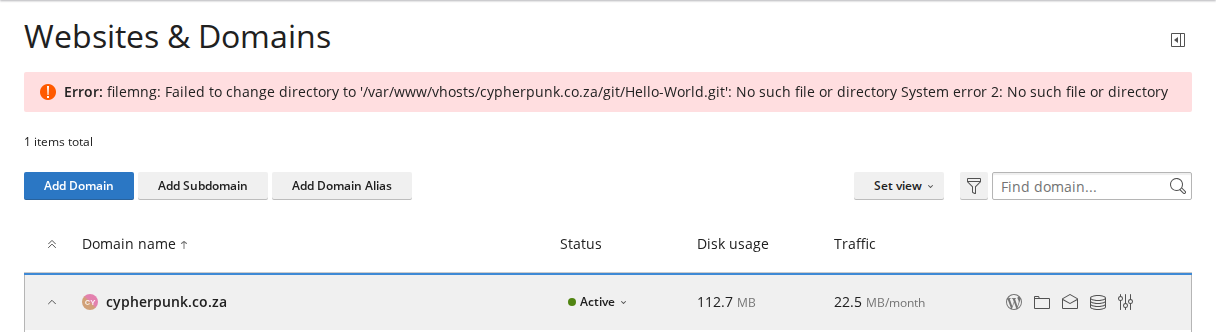
You may also notice that the Get Started tab still shows a last commit hash. That is cached registration data held by Plesk, not proof that the repository still exists.
Step 1: Check Whether More Than the Repository Is Missing
Section titled “Step 1: Check Whether More Than the Repository Is Missing”Do this first, before anything else. The Git banner is loud and it appears at the top of the page, so it is easy to assume the repository is the whole problem. It is often the visible corner of a much larger deletion.
- Open your website in a browser.
- If the site loads normally, only the repository is affected. Go to Step 4.
- If the site returns a 404, or shows the default Plesk page, more than the repository has been deleted. Continue with Step 2.
- In Plesk, go to Websites & Domains, open File Manager, and look at the subscription’s home directory.
- Confirm that your document root is present. On a standard Noiz Plesk subscription that is
httpdocs. Ifhttpdocsis missing, the website content has been deleted too.
A missing git folder and a missing httpdocs folder usually happen in the same action, because both sit side by side in the subscription’s home directory and both are easy to select together.
Step 2: Look in the Recycle Bin
Section titled “Step 2: Look in the Recycle Bin”Plesk moves deleted content into a hidden folder named .trash at the root of the subscription rather than erasing it immediately. Plesk’s own WordPress Toolkit change log refers to this folder as the Recycle Bin.
- In File Manager, go to the subscription’s home directory.
- Open the
.trashfolder. If you cannot see it, enable the display of hidden files in File Manager, since any name beginning with a dot is hidden by default. - Check the modification dates against the point at which the site stopped working.
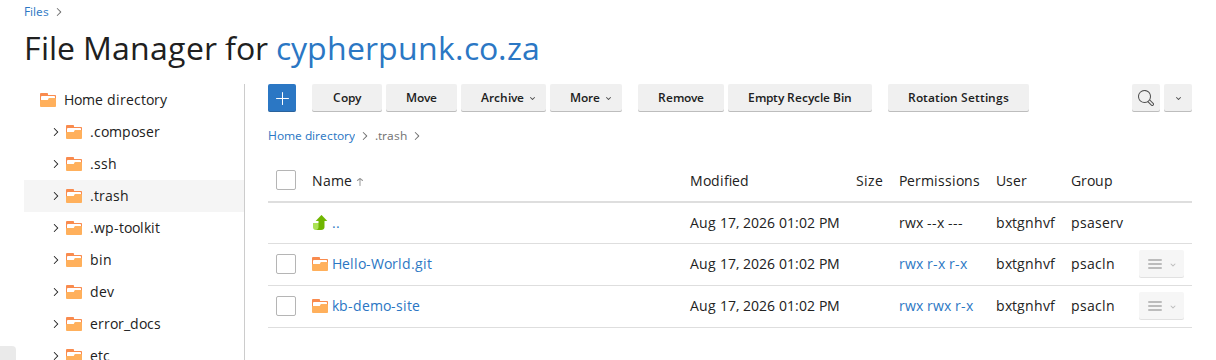
How Repeated Deletions Are Named
Section titled “How Repeated Deletions Are Named”If the same name is deleted more than once, Plesk keeps every copy and numbers them, so read the names carefully before you restore anything:
- Ordinary names take a numbered suffix:
httpdocs, thenhttpdocs.1, thenhttpdocs.2. - Names that begin with a dot take the number after the dot:
.ssh, then.1.ssh.
The copy without a number is normally the earliest one deleted, which is usually the last known good version of the site. A numbered copy is a later deletion, which may be a partial rebuild rather than a complete site. Compare the folder sizes and dates before choosing, and expect the complete copy to be substantially the larger one.
Plesk does not provide a Restore button for the Recycle Bin. Recovering content means copying it back out, either by you in File Manager or by Noiz support on the server.
Step 3: Restore the Content
Section titled “Step 3: Restore the Content”If You Are Restoring It Yourself
Section titled “If You Are Restoring It Yourself”Use File Manager to copy the correct folder from .trash back to the subscription’s home directory. Copy rather than move, so the Recycle Bin still holds the original if the first attempt is wrong.
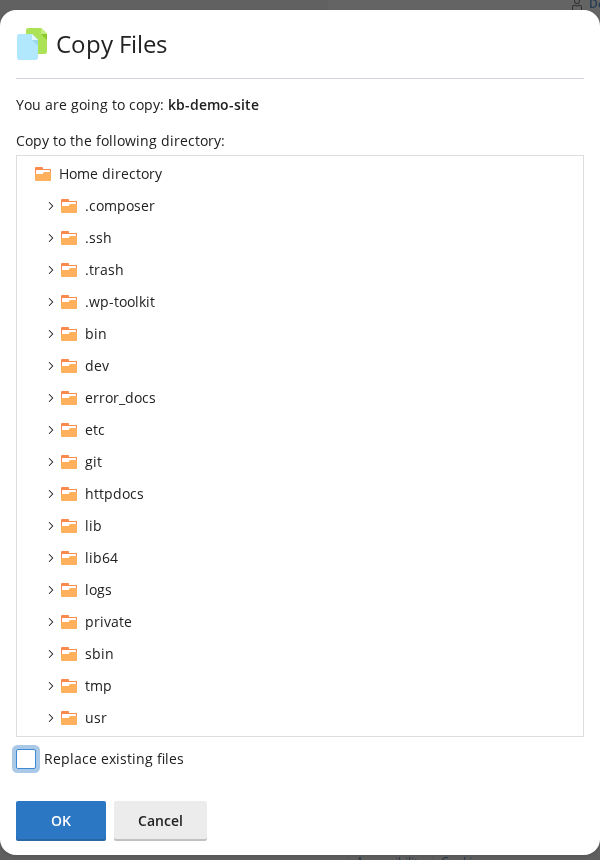
Restoring files this way can leave file ownership inconsistent, which shows up as permission errors on the website. If the site does not load correctly after the copy, ask Noiz support to run a file system repair on the subscription. That is a routine, non-destructive operation.
Note that if you have SSH access on your subscription, the shell is chrooted and its command set is deliberately minimal. It does not include git, so you cannot rebuild a repository folder over SSH.
If Noiz Support Is Restoring It
Section titled “If Noiz Support Is Restoring It”Support restores the content from the Recycle Bin, corrects ownership across the subscription, and confirms the site responds before handing back. Log a support ticket and quote the exact banner text, which tells support immediately which of the two errors is present.
Step 4: Clear the Git Error
Section titled “Step 4: Clear the Git Error”The Git page has a catch. Remove repository lives on the repository card, and that card only renders once Plesk can read the repository folder. While the folder is broken the page fails before it can draw the card, so there is nothing to click. That is why the error looks impossible to clear from the interface.
There are two ways out, and which one applies depends on what you want to keep.
Route A: Restore the Folder First
Section titled “Route A: Restore the Folder First”If the repository folder is sitting in the Recycle Bin, restore it exactly as described in Step 3. Once the folder is valid again, reload the Git page. The repository card renders, and the Remove repository control becomes available. You can then remove the registration yourself, or keep the repository and carry on using it.
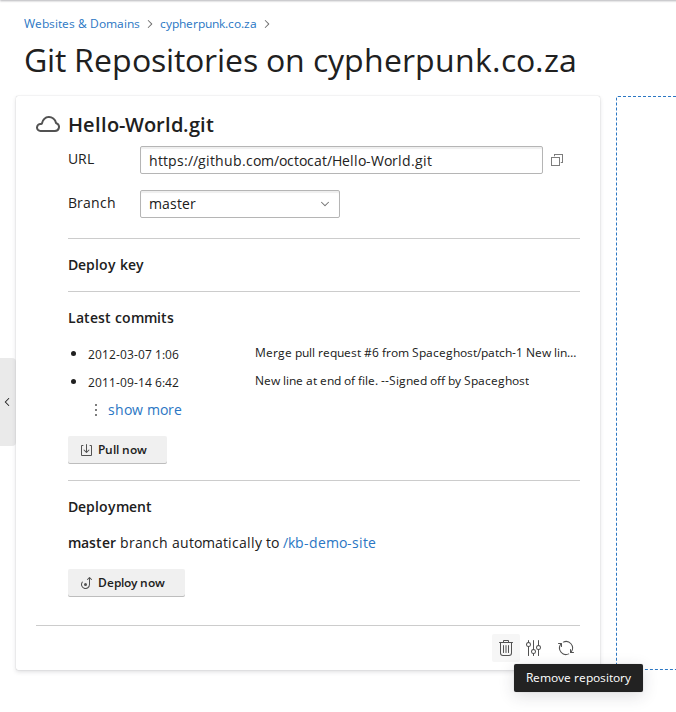
This route is worth knowing because it puts the decision back in your hands rather than requiring a ticket.
Route B: Ask Noiz Support to Remove the Registration
Section titled “Route B: Ask Noiz Support to Remove the Registration”If the folder is gone for good, or you no longer want the repository, the registration has to be removed on the server. This takes under a minute, and it does not touch your website files or your deployment target. Log a support ticket and ask for the Git registration to be removed.
Step 5: Verify Before Calling It Fixed
Section titled “Step 5: Verify Before Calling It Fixed”A page that loads is not by itself proof that a restore was complete. Check all of the following:
- Your website returns a normal page, not a 404 and not the default Plesk page.
- The pages you would expect to be there are there, including images and uploads, not just the home page.
- Websites & Domains loads without the red banner.
- The Git page either shows the repository card or shows no repository, rather than an error.
If Noiz support carried out the restore, ask for confirmation that a file comparison was run against the Recycle Bin copy. A restore can drop individual files without reporting an error anywhere, and a straight comparison is the only thing that catches it.
Step 6: Re-adding a Repository Afterwards
Section titled “Step 6: Re-adding a Repository Afterwards”If the deletion also removed the subscription’s hidden .ssh folder, Plesk generates a new key pair for the subscription. Any external Git host that was trusting the old key will now refuse the connection, so a repository that pulls from an external host stops deploying even after the folder is restored.
To fix that, take the current public key from the Git page in Plesk and add it to your repository on the external host as a deploy key. The old key is not recoverable and adding it again is not possible.
Troubleshooting
Section titled “Troubleshooting”Symptom: the banner is still on screen after the problem has been fixed. Log out of Plesk and log back in. The error is cached in your login session and can persist after the server side is clean.
Symptom: deployment fails with Permission denied (publickey). The external Git host does not recognise the subscription’s current key. Add the current public key from the Git page as a deploy key on that repository, as described in Step 6.
Symptom: deployment fails with ERROR: Repository not found. The key was accepted but it does not have access to that particular repository. Check that the deploy key is attached to the correct repository, and that the repository address in Plesk still matches its current name and owner.
Symptom: the site loads but pages, images or uploads are missing. The restore was partial. Go back to the Recycle Bin and compare the restored folder against the copy still held there, since a larger copy usually indicates the complete one.
Getting Help from Noiz
Section titled “Getting Help from Noiz”Removing a stale Git registration and restoring content from the Recycle Bin are both routine operations on the Noiz Plesk platform, and neither one puts your website at risk. If the banner will not clear, if the Recycle Bin does not hold what you expected, or if you would rather not copy folders around yourself, open a ticket from your Noiz client area and quote the exact error text. That single line identifies the problem immediately.
[noiz] | disrupt the signal