

How to Exclude Specific Files or Folders From a Plesk Backup
Plesk lets you leave chosen files, folders, or file types out of a backup so the archive stays smaller and quicker to create. This is handy for excluding large media libraries, log files, or cache directories you do not need to protect. This guide shows you how to do that from the Plesk control panel on your Noiz hosting.
Last reviewed: 27 July 2026, against the current Plesk Obsidian release. This guide is written for Noiz hosting and is kept current against Plesk. It complements, and does not replace, the official Plesk documentation linked below.
Official Documentation Reference
Section titled “Official Documentation Reference”- Plesk Obsidian Customer Guide. See the Backing Up and Restoration section for the full backup and restore reference.
Prerequisites
Section titled “Prerequisites”- Access to your Plesk control panel for the subscription you want to back up.
- The path of the file, folder, or file type you intend to exclude.
Exclude Files or Folders From a Plesk Backup
Section titled “Exclude Files or Folders From a Plesk Backup”- Log in to your Plesk account.
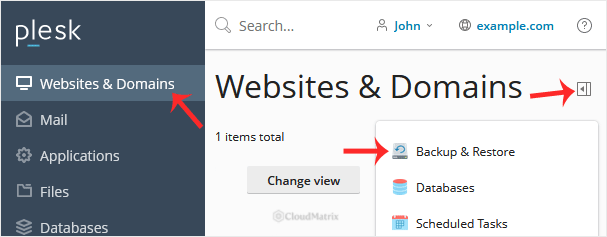
- Go to Websites & Domains > click the pull-down icon > choose Backup & Restore.
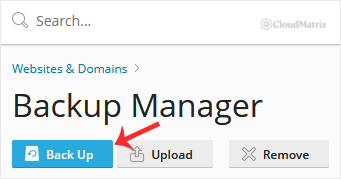
- Under Backup Manager, click Back Up.
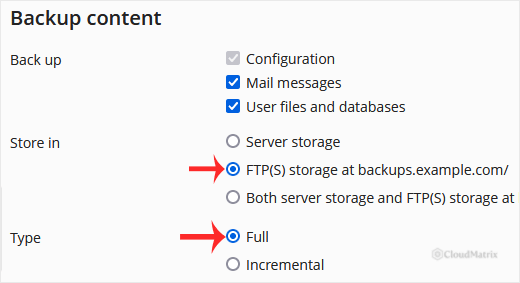
- Choose the backup type.
- Tick Exclude specific files from the backup.
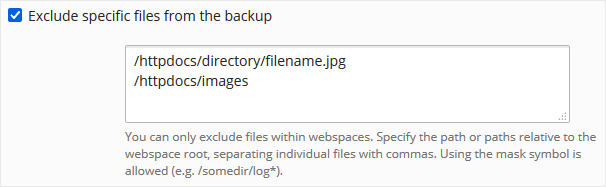
Enter one path per line. Paths are relative to the subscription’s home directory. For example:
To exclude a single file:
/httpdocs/directory/filename.jpgTo exclude a whole directory:
/httpdocs/imagesTo exclude only a specific file type, such as PNG images:
/httpdocs/images/*.png- Confirm with OK. The backup starts generating in the background, so you can navigate away from the page while it runs.
Good to Know
Section titled “Good to Know”- Exclusions you set here apply to this backup only. To keep files out of automatic backups, set the same Exclude specific files from the backup option inside your scheduled backup settings.
- The wildcard
*matches file names within a directory, so*.logor*.pngis a quick way to skip a whole file type. - Excluding large, easily replaced content (media libraries, caches, logs) keeps your backup archives smaller and faster to create and restore.
If you are on a managed Noiz plan and would like a hand configuring backups or exclusions, contact Noiz support through your client area and the team will assist.
[noiz] | disrupt the signal