

How to Update the Email Address of a Scheduled Task in Plesk
This guide shows you how to change the notification email address on a Scheduled Task (also called a Cron Job) in Plesk. Update it whenever the person who should receive a task’s output or error alerts changes, for example when a team member leaves or a shared mailbox is retired, so important run reports do not go to an address nobody reads.
Last reviewed: 27 July 2026, against the current Plesk Obsidian release. This guide is written for Noiz hosting and is kept current against Plesk. It complements, and does not replace, the official Plesk documentation.
Official Documentation Reference
Section titled “Official Documentation Reference”- Plesk Obsidian documentation portal (see the Scheduling Tasks section)
Prerequisites
Section titled “Prerequisites”- Access to your Plesk account for the subscription that owns the task.
- At least one existing Scheduled Task to edit.
Update the notification email address
Section titled “Update the notification email address”- Log in to your Plesk account.
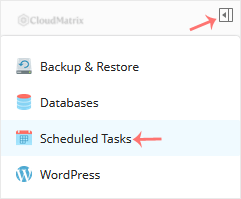
- Open Scheduled Tasks from the sidebar menu.
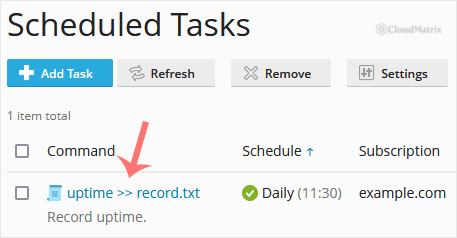
- Under the Command list, find your task and click it to open it.
- Scroll down to Send notifications, choose other users, and enter the new email address.
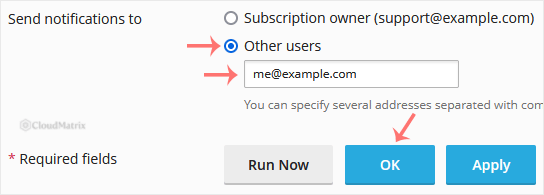
- Click OK to save the change.
Note: If the Send notifications to option is not available, set Notify to Every time or Errors only first. Notifications are off by default, so the recipient field only appears once notifications are switched on.
Need a hand?
Section titled “Need a hand?”If you are on a Noiz managed hosting plan and would like the change made for you, or the Scheduled Tasks area does not look as described above, open a support ticket from your Noiz client area and the team will assist.
[noiz] | disrupt the signal