

How to Install a WordPress Plugin
Plugins are how a WordPress site gains features it does not ship with: contact forms, SEO tools, backups, caching, security hardening, shop functionality. This guide shows you how to search the official WordPress Plugin Directory and install a plugin directly from your WordPress dashboard, without touching FTP or a file manager, and how to tell a plugin worth installing from one that will cause you problems later.
This is the method to use for anything published on WordPress.org. If you bought a premium plugin and were given a ZIP file to upload, see How to Manually Install a WordPress Plugin instead.
Last reviewed: 27 July 2026, against the current WordPress release. This guide is written for WordPress sites hosted with Noiz and is kept current against WordPress. It complements, and does not replace, the official WordPress documentation linked below.
Official Documentation Reference
Section titled “Official Documentation Reference”- WordPress Documentation: Manage Plugins
- The WordPress Plugin Directory
- Plugin Directory Guidelines (what a listed plugin must comply with)
- WordPress Roles and Capabilities
Prerequisites
Section titled “Prerequisites”- A WordPress site on your Noiz hosting account.
- An Administrator account on that site. Editor, Author and Contributor accounts cannot install plugins.
- A current backup, or the confidence that you can restore one. Installing a plugin changes your site’s code, and a small number of plugins do not get on with each other.
- On a WordPress Multisite network, plugin installation is restricted to the Network Administrator from My Sites > Network Admin > Plugins.
Install a Plugin From the WordPress Dashboard
Section titled “Install a Plugin From the WordPress Dashboard”1. Log in to the WordPress dashboard
Section titled “1. Log in to the WordPress dashboard”Go to https://yourdomain.com/wp-admin (replace yourdomain.com with your own domain) and sign in with your Administrator account.
2. Open the plugin installer
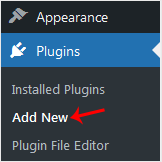
Section titled “2. Open the plugin installer”In the left-hand menu, hover over Plugins and click Add New Plugin. On WordPress versions before 6.4 this menu item is labelled simply Add New, as shown below. Both open the same screen.
3. Search for the plugin you want
Section titled “3. Search for the plugin you want”Use the Search plugins box on the right of the screen to search the WordPress Plugin Directory. You can search by exact plugin name, by author, or by keyword. In this example, typing Security returns plugins tagged for site security.
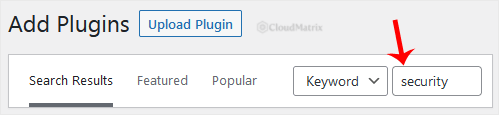
Search is live, so results update as you type. If you already know the exact plugin you need, type its full name rather than a keyword; keyword searches surface a lot of loosely related results.
4. Install the plugin
Section titled “4. Install the plugin”Find the plugin you want in the results and click Install Now on its card. WordPress downloads the plugin from WordPress.org and unpacks it into wp-content/plugins on your hosting account for you.
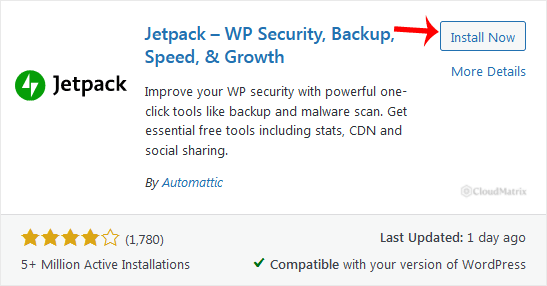
Before you click, read the card. It shows the star rating, the number of active installations, when the plugin was last updated, and whether it is marked compatible with your version of WordPress. Click More Details for the full readme, changelog and support history. See Choosing a Plugin Worth Installing below for what those numbers actually tell you.
5. Activate the plugin
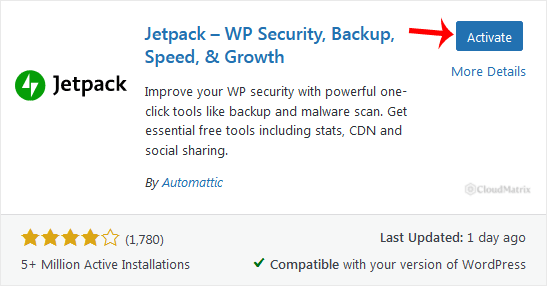
Section titled “5. Activate the plugin”Installation takes a few seconds. When the button changes to Activate, click it. A plugin that is installed but not activated does nothing at all, so this step is not optional.
6. Configure the plugin
Section titled “6. Configure the plugin”After activation, most plugins add their own entry to the dashboard menu, either as a new top-level item or as a sub-item under Settings or Tools. Plugins that need setting up before they do anything usually show a setup wizard or an admin notice with a link to it. If nothing obvious appears, check Plugins > Installed Plugins: the plugin’s row often carries a Settings link.
Choosing a Plugin Worth Installing
Section titled “Choosing a Plugin Worth Installing”Every plugin listed in the WordPress Plugin Directory has passed a review, but that review checks compliance with the directory guidelines, not quality, performance or long-term maintenance. Before you install, look at four things on the plugin card or its More Details panel:
- Last updated. A plugin untouched for more than a year is a risk. Abandoned plugins are one of the most common routes into a compromised WordPress site, because nobody is left to patch them.
- Active installations. A plugin with hundreds of thousands of installs has had far more eyes on its code than one with two hundred. Low install counts are not disqualifying, but they raise the burden of proof.
- Tested up to. If the plugin has not been tested against a recent WordPress release, expect friction. WordPress will warn you before installing an untested plugin, and you can proceed, but do it on a staging copy first.
- Support threads resolved. On the plugin’s WordPress.org page, the support tab shows how many recent threads the developer actually answered. A wall of unanswered threads tells you what your own support experience will be.
Also keep the total count down. Plugin count itself is not the problem, but every active plugin adds queries, HTTP requests and code that runs on each page load, and a site running forty plugins is a site where diagnosing a slowdown or a conflict becomes genuinely difficult. Install what you need, and remove what you stopped using rather than leaving it deactivated. See How to Deactivate and Delete a WordPress Plugin.
Troubleshooting
Section titled “Troubleshooting”Symptom: there is no Add New Plugin item under the Plugins menu, or no Plugins menu at all.
Your account is not an Administrator, or the site is part of a Multisite network where plugin installation is handled by the Network Administrator. If you are certain you are an Administrator on a standalone site, the constant DISALLOW_FILE_MODS may be set to true in wp-config.php, which disables plugin and theme installation across the whole site. Some security plugins set this deliberately.
Symptom: WordPress asks for FTP connection details when you click Install Now.
This happens when WordPress cannot write to wp-content/plugins under its own user, usually because files were uploaded or restored under the wrong ownership. On Noiz hosting, file ownership is set correctly when the site is provisioned, so this prompt normally means something was copied in from elsewhere. Open a support ticket rather than entering credentials into the prompt, and Noiz will correct the ownership.
Symptom: the installation fails with a message about the destination folder already existing.
An earlier copy of the plugin is still on disk, often from a half-finished install or a manual upload. Check Plugins > Installed Plugins first: if the plugin is listed there, use its Update link instead of installing it again. If it is not listed, delete the leftover folder under wp-content/plugins using the File Manager in your hosting control panel, then retry.
Symptom: your site shows a blank page or an error immediately after activating a plugin.
The plugin has conflicted with your theme, another plugin, or the site’s PHP version. If you can still reach the dashboard, deactivate the plugin. If you cannot, rename that plugin’s folder inside wp-content/plugins using the File Manager; WordPress deactivates any plugin whose folder it can no longer find, which restores access to the dashboard.
Symptom: the plugin installs, but a required PHP extension or a higher PHP version is reported as missing.
Check the plugin’s requirements on its WordPress.org page, then raise a ticket with Noiz. Most PHP version changes and extension requests are handled quickly on Noiz hosting.
Related Articles
Section titled “Related Articles”- How to Manually Install a WordPress Plugin, for premium or third-party plugins supplied as a ZIP file.
- How to Deactivate and Delete a WordPress Plugin, for removing plugins cleanly.
If a plugin will not install, breaks your site on activation, or needs a PHP setting your site does not currently have, open a ticket from the Noiz client area and the Noiz support team will take a look.
[noiz] | disrupt the signal