
How to Pay with Payfast for Recurring Payments
Payfast is the South African payment gateway you can pay Noiz invoices through in rand. Pay one invoice with your card and Payfast keeps the card on file for Noiz, so every invoice that follows is charged to it automatically and you never have to log in to pay. This guide walks through that first payment, screen by screen, and explains what happens afterwards.
Last reviewed: 9 November 2026, against the current Noiz Console and Payfast payment page.
Official Documentation Reference
Section titled “Official Documentation Reference”- Payfast developer documentation: Recurring Billing and Tokenization, how Payfast stores a card and charges it only when the merchant asks.
- Payfast: Tokenization, where your card details are kept. Payfast is a PCI DSS Level 1 service provider.
Before You Start
Section titled “Before You Start”- Your Noiz Console login. See How to Log In to the Console.
- A credit or cheque card. Payfast can only save a card, so Instant EFT, Capitec Pay and its other options cannot be used for automatic payments. Keep your phone nearby: your bank asks you to approve the first payment.
- An unpaid invoice whose payment method reads Payfast (Online). If yours shows something else, see If Your Invoice Shows Another Payment Method.
Pay Your Invoice Through Payfast
Section titled “Pay Your Invoice Through Payfast”-
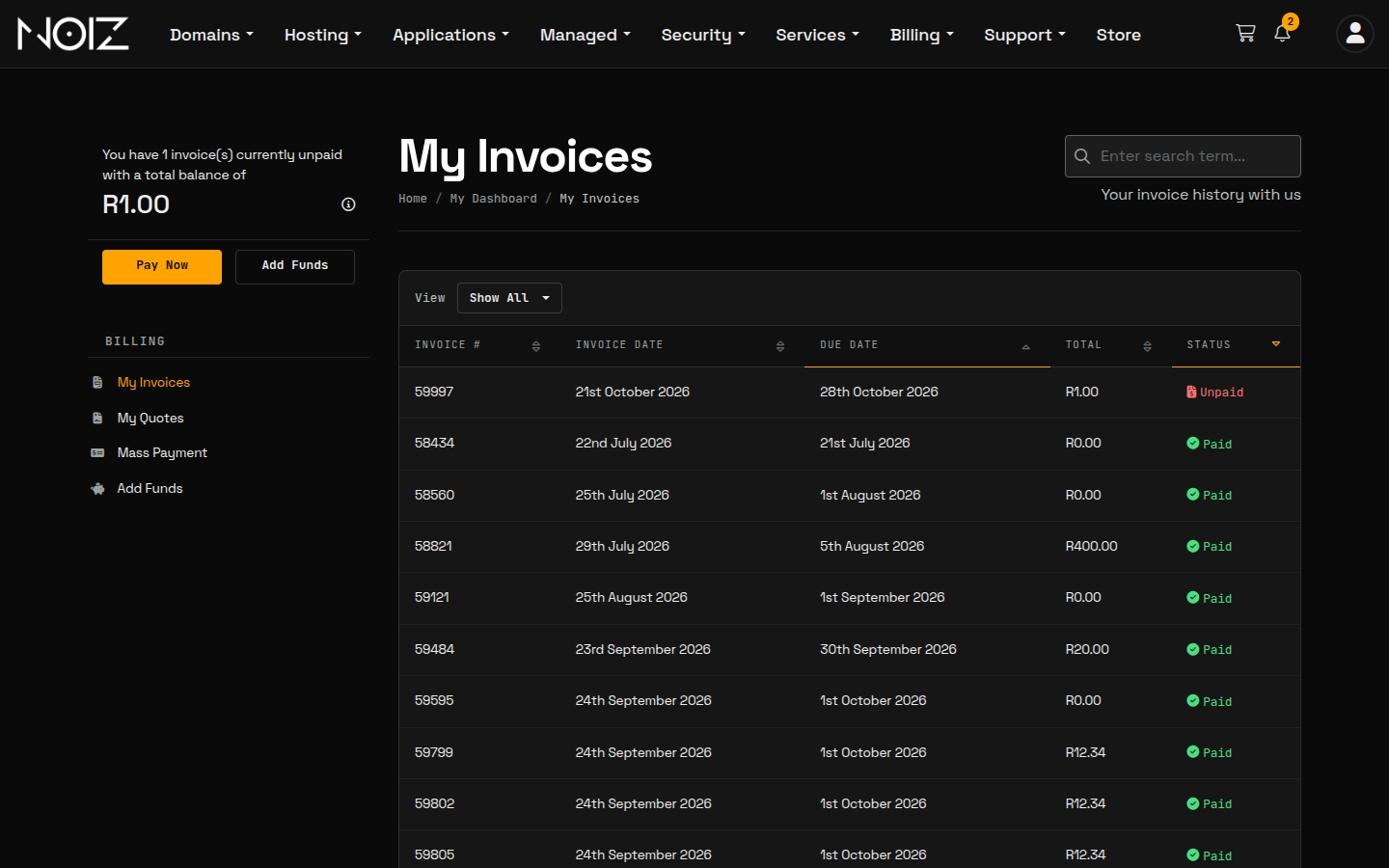
Open the invoice. Log in to the Console and click Billing > My Invoices. Click the invoice marked Unpaid.
-
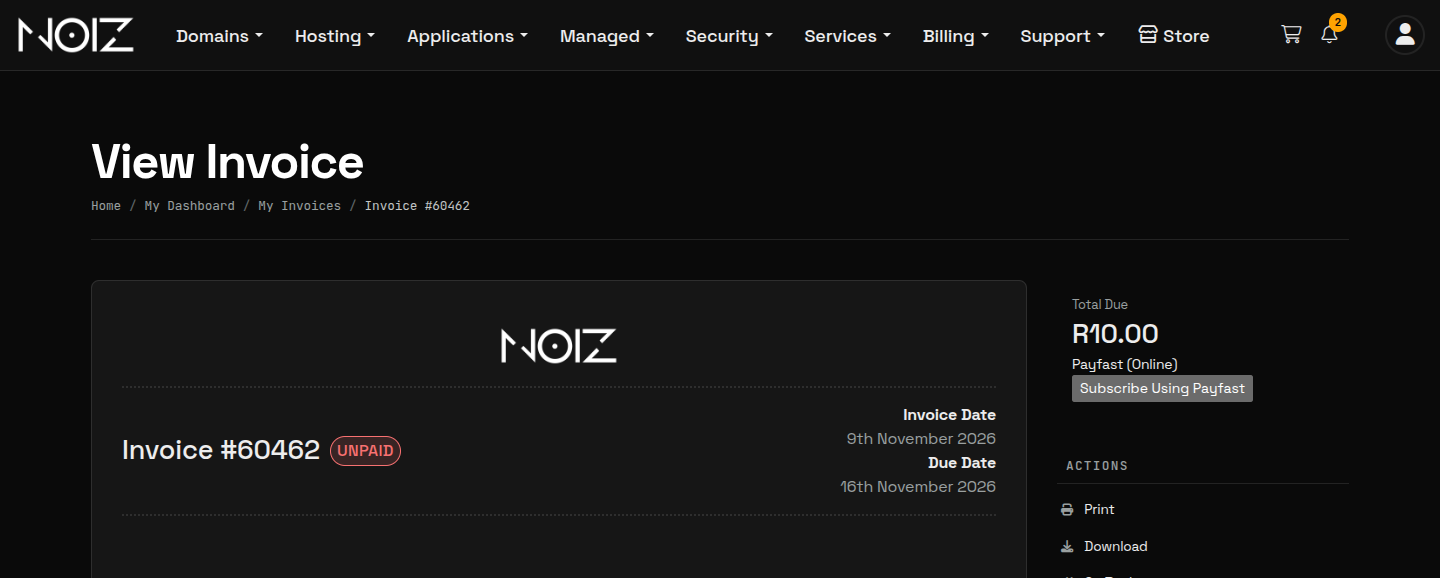
Click Subscribe Using Payfast. In the panel on the right, under Total Due, the payment method reads Payfast (Online). Click Subscribe Using Payfast. “Subscribe” means the card you are about to pay with is kept for the invoices that follow; it does not add a subscription or change what you pay.
-
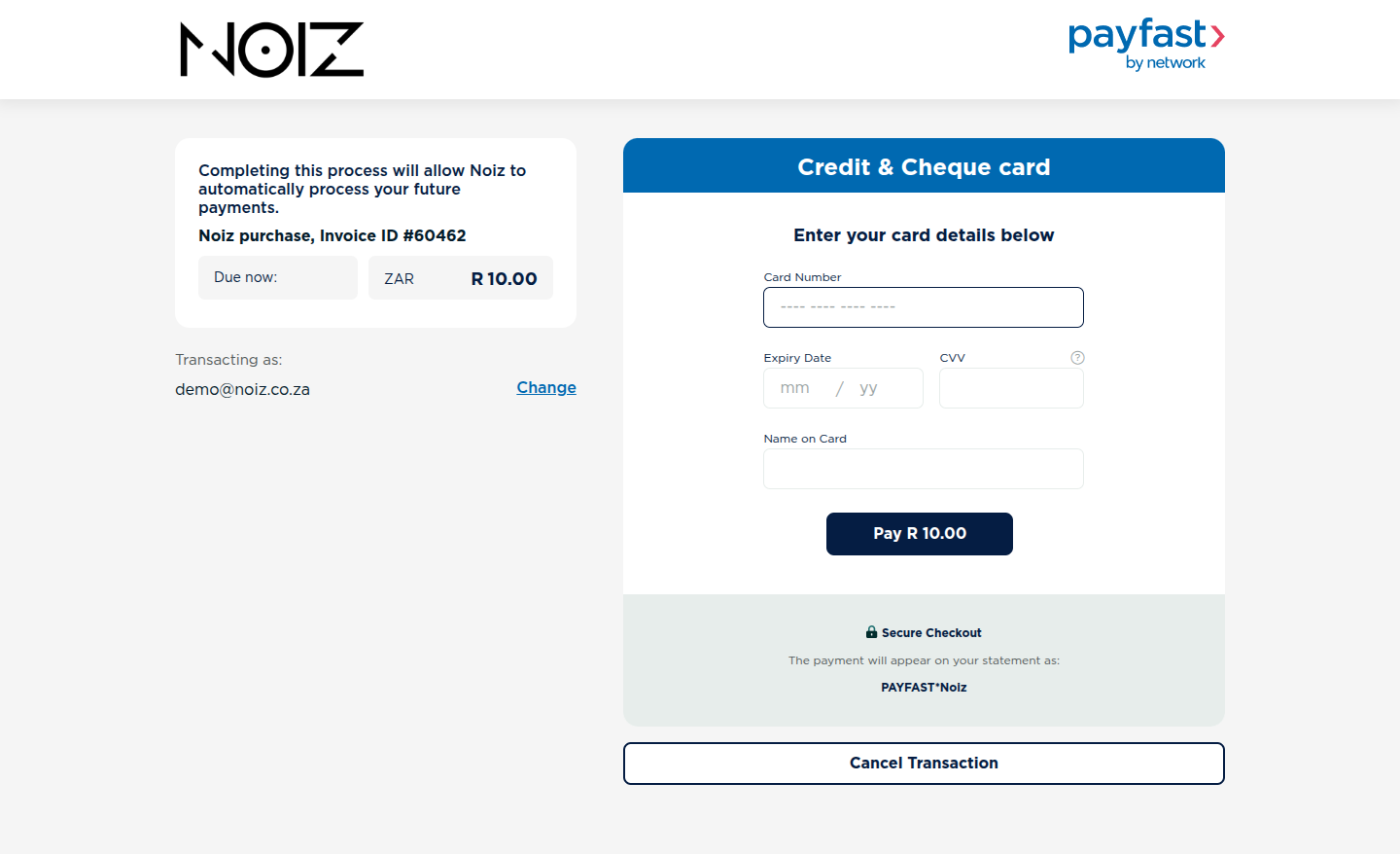
Enter your card on Payfast’s page. You are taken to Payfast’s secure payment page. The note on the left, “Completing this process will allow Noiz to automatically process your future payments.”, is Payfast telling you that the card will be saved. Under Credit & Cheque card, fill in Card Number, Expiry Date, CVV and Name on Card, then click Pay R … (the button shows the amount due). The page also tells you how the payment appears on your bank statement: PAYFAST*Noiz.
-
Approve the payment with your bank. Your bank asks you to confirm the payment, with a code it sends you or a prompt in your banking app.
-
Done. Payfast sends you back to your invoice, which shows Paid once Payfast has confirmed the payment to us, normally by the time the page loads. If it still says Unpaid, wait a minute and refresh the page rather than paying again. Your receipt arrives by email.
What Happens Next
Section titled “What Happens Next”Your card now appears under Payment Methods (click the account icon at the top right of the Console). A card saved through Payfast is listed as cc-1234 with the description Tokenization; the digits are a placeholder, not the last four digits of your card.
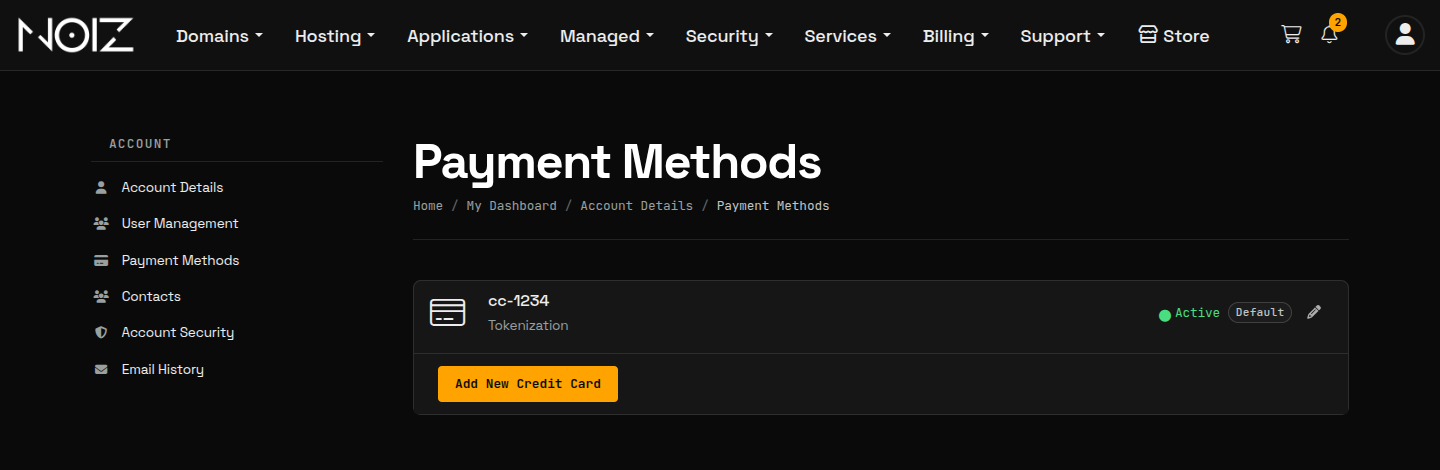
From then on, each billing period runs by itself:
- 7 days before the due date: we email you the invoice, so you can see what will be charged.
- 1 day before the due date: the invoice is charged to your saved card and marked Paid. Your receipt arrives by email.
Your card details are held by Payfast, never on Noiz servers. We keep only a reference to the card, called a token, which lets us charge it for the services billed to it. This is set out in our Billing and Payment Policy.
If an Automatic Charge Fails
Section titled “If an Automatic Charge Fails”If your card is declined (expired, insufficient funds or blocked by your bank), the invoice stays Unpaid and we email you.
- Pay the invoice by hand: open it from Billing > My Invoices and click Pay Using Payfast. This pays that one invoice with any card and leaves your saved card as it is.
- We retry a failed charge once a week for up to three weeks, but an unpaid service is suspended 20 days after its due date, so do not wait for the retry.
- If your card has expired or been replaced, see the next section.
Cards that ask for your bank’s approval on every payment (a code or a prompt in your banking app each time) cannot be charged automatically, because nobody is there to approve it. If your card works this way, pay each invoice by hand when the email arrives, or ask your bank whether it can approve recurring payments.
Change or Remove Your Card
Section titled “Change or Remove Your Card”A Payfast card cannot be added or replaced from the Console: under Payment Methods, Add New Credit Card with the type Payfast (Online) says “A new card can only be added when paying an invoice.” To switch to a new card, email support@noiz.co.za and ask us to remove the saved card. Your next invoice then shows Subscribe Using Payfast again, and paying it saves the new card.

A saved card stays on your account for as long as any service is billed to it. To stop card billing, cancel the service under the Cancellation Policy, or ask support to move your account to EFT. Once nothing is billed to a card, we remove it on request.
If Your Invoice Shows Another Payment Method
Section titled “If Your Invoice Shows Another Payment Method”Each invoice is paid with the payment method of the service it is for, so you cannot switch a single invoice to Payfast on the invoice page. If your invoices show Stripe (Online) or Electronic Funds Transfer (EFT) and you would like to pay through Payfast instead, email support@noiz.co.za and we will move your account. When you order something new, you can choose Payfast as the payment method at checkout.
Other Ways to Pay
Section titled “Other Ways to Pay”You can also pay by card through Stripe, which saves your card in the same way: see How to Set Up a Recurring Card Payment. South African clients can pay by EFT, and anyone can pay with Monero (XMR); both are paid by hand for each invoice. See How to View and Pay an Invoice.
Need Help?
Section titled “Need Help?”If you are stuck on the payment page, contact Noiz support:
- Email: support@noiz.co.za
- Ticket: open a support ticket
- Signal: Contact Noiz on Signal
[noiz] · disrupt the signal
[noiz] | disrupt the signal